
Full Sail Partners Blog | Resource Management

Posts about Resource Management:

Management of Change Series: The Role Human Resources Plays in Effective Change Management

Posted by Tasia Grant, PHR on Mar 8, 2024, 12:00:00 AM

03-07-24 MOC-Human Resources-Banner

The goal of change management is to facilitate successful transitions within a company from the current state to a desired future state. This involves effectively managing the people, processes, systems, and culture impacted by the change to minimize resistance, mitigate risks, and achieve the desired outcomes. In every company, HR’s main role is to function as the “grease” if you will between the goals of the company and how the people in the company contribute to achieving those goals. 

According to an article from AIHR, HR plays a variety of roles in supporting change:

  • Being an active member of the change management team.
  • Being a coach to a manager who is a change leader.
  • Providing training on change management.
  • Helping to build processes the organization can follow for change management.
  • Leading the change as HR professionals.

Managing the People 

How do HR professionals help employees embrace change?

Companies are truly the embodiment of the people who work there. Each employee is both a distinct, individual working personality and a significant piece of the whole company. And because company leaders recognize the importance of their people, the HR function plays a vital role in the overall change management process. Communicating directly with leadership, HR helps people get ready for change by supporting employees throughout the change process, providing transparency, addressing concerns, explaining the reasons behind the change, and soliciting feedback. With employee buy-in, morale will remain strong through the journey of change.

Managing the Processes

How do HR professionals help engender a culture that accepts and supports change? 

Training and Development: HR identifies the skills and knowledge gaps that may arise due to the change and develops training programs to equip employees with the necessary competencies to adapt to new processes, technologies, or ways of working. They also provide coaching and support to managers to help them lead their teams through change effectively. 

Change Readiness Assessment: HR conducts assessments to gauge the company's readiness for change, including evaluating the current culture, identifying potential resistance, and assessing the capacity for change adoption. Based on these assessments, HR develops strategies to address any barriers to change.

Change Planning and Implementation: HR collaborates with other departments to develop change management plans that outline the objectives, timelines, resource requirements, and communication strategies for implementing the change. They coordinate with project teams to ensure that change initiatives are executed smoothly and effectively.

Employee Support and Assistance: HR provides ongoing support to employees during the transition period, offering resources such as counseling services, employee assistance programs, and access to relevant information to help them cope with any challenges or uncertainties arising from the change. 

Performance Management: HR revisits performance management systems and processes to align them with the new objectives and priorities resulting from the change. They may adjust performance metrics, goals, and feedback mechanisms to ensure they support the desired outcomes of the change initiative. 

Culture Alignment: HR works to align the organizational culture with the desired state by promoting values and behaviors that support the change. They may initiate culture change initiatives, promote collaboration and teamwork, and recognize and reward behaviors that demonstrate alignment with the change objectives. 

Feedback and Continuous Improvement: HR gathers feedback from employees and stakeholders throughout the change process to assess the effectiveness of change initiatives and identify areas for improvement. They use this feedback to refine change management strategies and ensure that future changes are implemented more successfully. 

Minimizing Resistance to Change

How can HR professionals prevent common roadblocks to change?

Suggestions from a Principal Change Management Advisor at Prosci are:

Getting in Early to the Process: HR must be present at the early stages of the change process. Often, team leaders, project managers and executives forget about the “people side” of change in their efforts to move forward. It is very important for HR to be there at the beginning of the change process to advocate for the employees.

Having Clear Communications: Lack of clear communications in companies can lead to unnecessary misunderstandings. HR will be the mediator between change management teams and employees, so they need clear communications to update people on the change timeline. In order to have a successful employee experience and keep morale high, communication is a necessity.

Getting Leadership Support: Leadership must back all processes in change management. There needs to be a clear vision for change that HR professionals can understand. Then they can relay change objectives to the rest of the company in a consistent manner.

Managing Expectations: HR professionals should manage leadership and employee expectations during change initiatives. With good communication and the right support, HR teams can manage expectations, preventing push back and increasing buy-in from all team members.

Explaining Cultural Shift: Many people comfortable with the existing culture become resistant to change. HR professionals can work with those individuals to show the value of the cultural change and how it will benefit everyone in the long run. This will take the fear out of those resistant to the changes and make the transition easier.

Leading an Effective Change and Getting Desired Outcomes

HR professionals taking proactive steps to avoid the challenges that come with change management can increase the likelihood of success in change management initiatives. Getting buy-in from leadership at the outset will lead to employee buy-in and increased morale. Furthermore, clear communication, employee engagement, careful planning, and ongoing support are essential for navigating change successfully. As HR plays many roles in supporting change, it is an essential part of any change management plan and should be included from the beginning of the process.
 

The How-To Guide for Understanding Capacity Calculations in Deltek Vantagepoint Resource Management

Posted by Terri Agnew, CPA on Sep 28, 2023, 12:00:00 AM

9-28-23_ResourceMgmt Views - Banner

Using the Resource View in Deltek Vantagepoint is a quick and easy tool for project-based firms to determine which employees are properly scheduled or utilized, and/or those who may not have enough or too many hours planned. This view has a lot of valuable information on one screen and can sometimes seem a bit overwhelming. So, the content provided here in this blog, which is utilized with Resource Planning licensing, will assist you with the questions like “What do the blue/red/grey colors mean?” or “How is the utilization % calculated” and help make this form one of the most important tools in your firm’s resource management toolbox.  

Three Show Capacity Views 

There are three different options to monitor your resources: Planned Hours, Scheduled %, and Utilization %. Below you will find illustrations showing how these three views are calculated for you to better understand the information Resource View is displaying. 

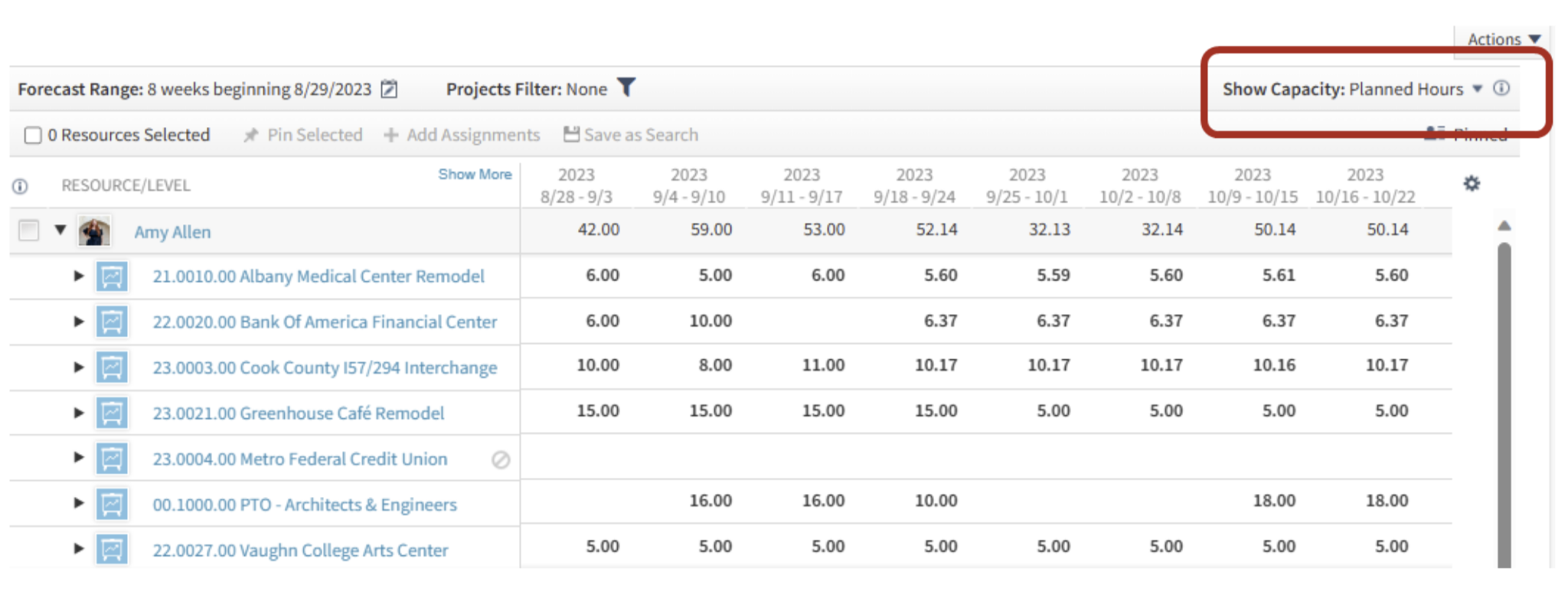
Planned Hours 

Planned Hours is the simplest of the calculations as it is what it says it is – all planned hours! Use this view to simply check each selected resource's total planned hours for the time period shown in the Forecast Range. Planned hours will be shown for all published plans for ALL types of projects – overhead, promotional, and regular projects. Planned hours will show even if the project is showing a capacity calculation of excluded from scheduled and utilized % on the project’s summary pane. 

ResourceMgmt_01

Scheduled %

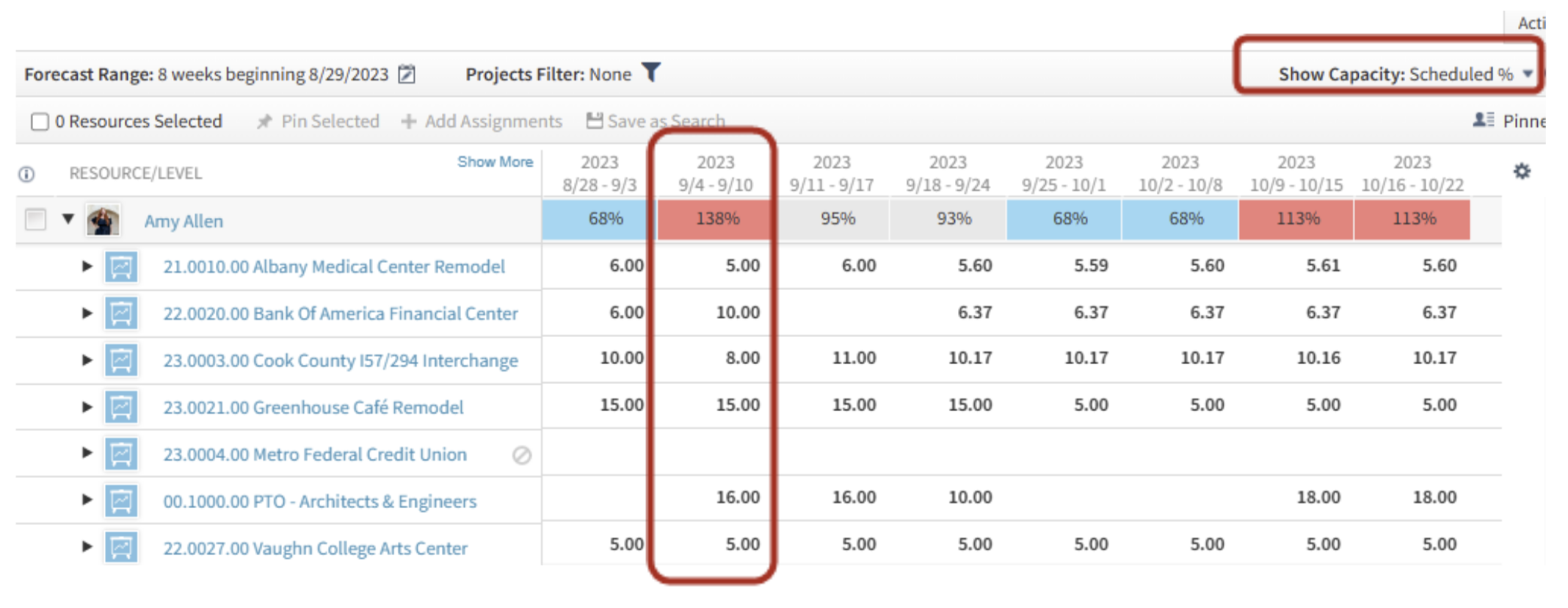
When you change the view from Planned Hours to Scheduled %, you will notice the “heat map” will appear. This “heat map” is used to visually draw a user’s attention to which resources are properly scheduled (grey), under scheduled (blue), or over scheduled (red) based on the firm’s chosen thresholds (Settings > Resource Planning > Resource Settings). 

ResourceMgmt_02

The Scheduled % is a calculation of Planned Hours divided by Available Hours for the resource. This view is great to use to get an understanding of if a resource is too busy (red) or has availability to be assigned to more projects (blue) or if they are appropriately scheduled during the timeframe (grey). 

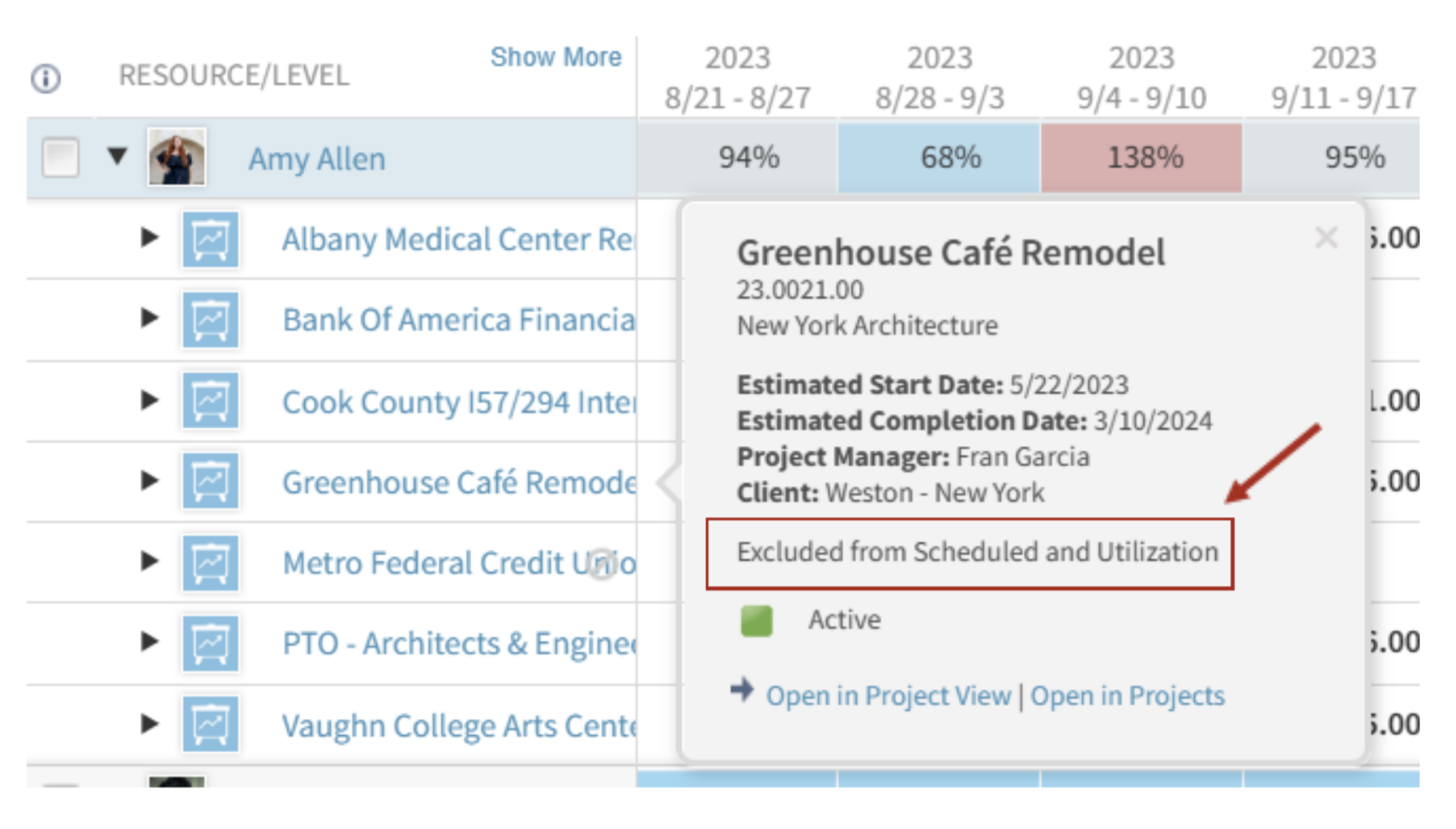
  • Planned Hours - this calculation will include all types of projects (regular, promotional, & overhead). However, if a project shows as “Excluded from Scheduled and Utilization” on the Project’s Summary tab, those planned hours will not be used in this calculation. Note that excluded hours will still show the hours when the details are expanded for the resource. 
  • Available Hours - these are calculated using the employee’s standard hours from their employee hub, less any non-workdays as indicated in Settings > Resource Planning > non-Workdays. 

In the example shown below, I will break down the calculation for the week of 9/4 – 9/10 where Amy Allen is showing over scheduled at 138%. 

Planned Hours / Available Hours = Scheduled %      =     44 / 32 = 138% 

Planned Hours = 59 total hours planned less 15 hours for Greenhouse Café Remodel as that project is currently set to “Exclude from Scheduled and Utilization” in the project. The numerator is 59 -15 = 44 hours. 

*Note when you click on the blue link of each project, a small summary box for the project will appear where you can easily see if a project is “included” or “excluded” from Scheduled and Utilization. 

ResourceMgmt_03

Available Hours – Amy Allen’s standard hours are set as 8 hours per day in her employee hub, which is typical for a full-time 40-hour/week employee. The week of 9/4 – 9/10 contains a Labor Day Holiday in the company’s non-workday settings. As discussed earlier, holiday hours are excluded from available hours. Therefore, the denominator is 40 – 8 = 32.  

 *Note that when you click on a resource’s name, the Employee Card will appear. On that employee card, you will find the Hours/Day in the bottom right of the Profile Tab. 

Now, the shading!  What is this heat map telling you?   

Understandably, being scheduled at 138% would seem to be over scheduled just because it is a relatively large number, but the system is compared to the firm’s Resource Planning Settings. In my demo database shown here, the blue shading indicates under scheduled as under 90%, and the red shading for over schedule when over 105%. Grey is “just right” of 90 – 105%, which this firm has indicated as appropriately scheduled.    

In summary, in my database, a full-time, 40-hour/week employee would show as properly scheduled (grey) if the scheduled hours are between 36 (90% x 40) and 42 hours, under-scheduled would be less than 36 hours (blue) and over scheduled as over 42 hours (red). 

Utilization %

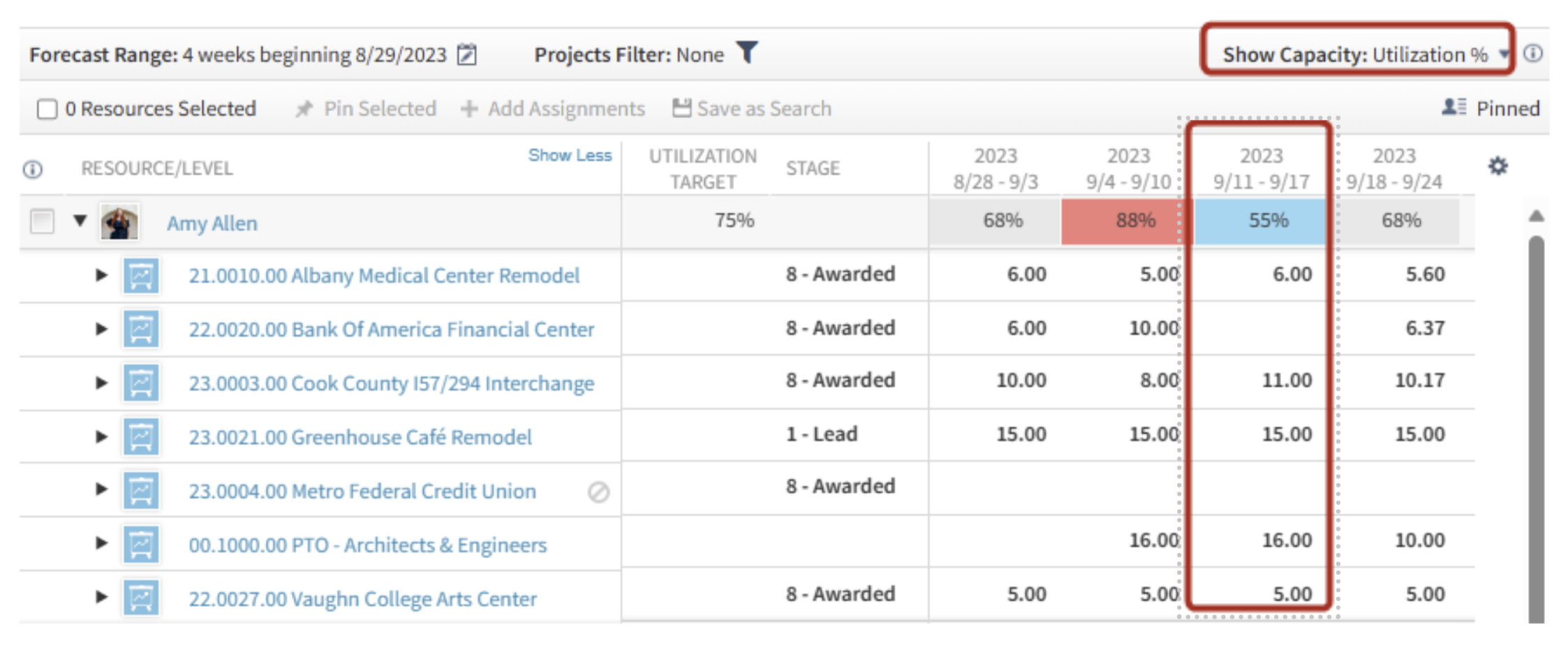
The Utilization % will show the percentage of the planned hours for billable projects (regular/won projects) and those In Pursuit projects marked as “included in scheduled and utilization”. Use this view to show how an employee is tracking against their Target Utilization. Even if an employee is well scheduled, in the example above, if several of the projects are either overhead or In Pursuit and not included in scheduled and utilization, the employee may be shown as under-utilized.  

ResourceMgmt_04

Utilization % is a calculation of Total Billable Planned Hours divided by Available Hours (same calculation as above). 

Total Billable Planned Hours only includes regular projects, no promotional projects nor overhead projects. Regular projects will be all those in the Stage Step of Won and any In Pursuit that are “Included in Scheduled & Utilization” Capacity calculations. 

For this example, I will be showing the calculation for the week of 9/11 – 9/17 from the picture above. In this view, I am also showing a few additional columns in the middle grid that help demonstrate if a project is “billable” or not.   

As you can see, I have one project that is a Lead Stage – Greenhouse Café Remodel, and as discussed above, that project is Excluded from Scheduled and Utilization so those hours will not be included in the numerator. Additionally, there is one project that is overhead (no stage listed), which is PTO.   

Total Billable Planned Hours / Available Hours = Utilization %      =     22 / 40 = 55% 

Total Billable Planned Hours = 53 total hours planned less 15 hours for Greenhouse Café Remodel as that project is currently set to “Exclude from Scheduled and Utilization” in the project, less the PTO hours of 16. The numerator is 53 -31 = 22 hours. 

Available Hours (as stated above) are calculated using the employee’s standard hours from the employee hub, less any non-workdays. This week does not have a holiday and this employee’s standard hours are 8 hours/day so the Available Hours = 40. 

Shading for Utilization %: 

To understand the heat map for the Utilization %, the formula considers each employee’s Utilization Target, which is set in the Employee Hub. This employee, Amy Allen, has a Utilization Target of 75%. 

The threshold calculation is the Utilization % divided by the employee’s Utilization Target. 

For the week ending 9/17, Amy’s planned Utilization % is 55% divided by the target of 75% equals 73%. In my demo database shown here, the blue shading will be under-utilized if the utilization % is under 90%, red shading over 105%, and “just right” or grey is between 90 – 105%. Therefore, since Amy’s threshold calculation is 73%, she is showing blue as that is under-utilized in my database. 

Capacity Calculations Made Easy with Resource View 

So, in summary, the Resource View in Deltek Vantagepoint has a lot of valuable information on one screen. You can use it to navigate to three different views to understand (1) how many hours an employee has planned in total (Planned Hours), (2) if the employee is over/under scheduled (Scheduled %), and (3) if the employee is over/under utilized by simply navigating between the three options in “Show Capacity”. Project based firms should be making the most of the resource management tools available within Deltek Vantagepoint! To learn more about this feature and other Resource Management tools, please visit our webinars located here: Webinars for Project Manager Rockstars! 


Latest Posts