
Full Sail Partners Blog | Deltek Vantagepoint (8)

Posts about Deltek Vantagepoint (8):

Going Paperless with Deltek Vantagepoint

Posted by Terri Agnew, CPA on Jan 12, 2023 12:00:00 AM
2023_Going Paperless with DVP_BannerAs we kick off the New Year, many people make resolutions. Some people create personal resolutions like exercising more or saving money for a vacation and some create professional resolutions such as striving for a promotion. Many firms also set organizational resolutions, usually called goals. Common goals are to improve profitability or implement more efficient processes. One goal that can both improve profitability and create efficiencies in an organization is to go paperless in your accounting department.   

Does your firm have a goal to go paperless? Going paperless or at least striving to significantly reduce paper in your organization can benefit a firm in the following ways: 

  • Cost reductions – One obvious item is the reduced expense of the paper itself, but other items could include a reduction of printer ink, file folders, file cabinets, and storage rental to save records. If going paperless includes paying vendors by EFT, as discussed below, the expense reduction can also include the cost of check stock, envelopes, and postage to mail checks.   
  • Efficiencies gained – Many firms spend time printing reports, invoices, and checks and then have to manage to distribute these items and sometimes track that items have been returned. Eliminating printing these items and allowing the system to “manage the distribution” will streamline the process.   

Here are some examples of how Deltek Vantagepoint can help you get your firm to go paperless! 

Utilize Deltek’s AP Approval Process  

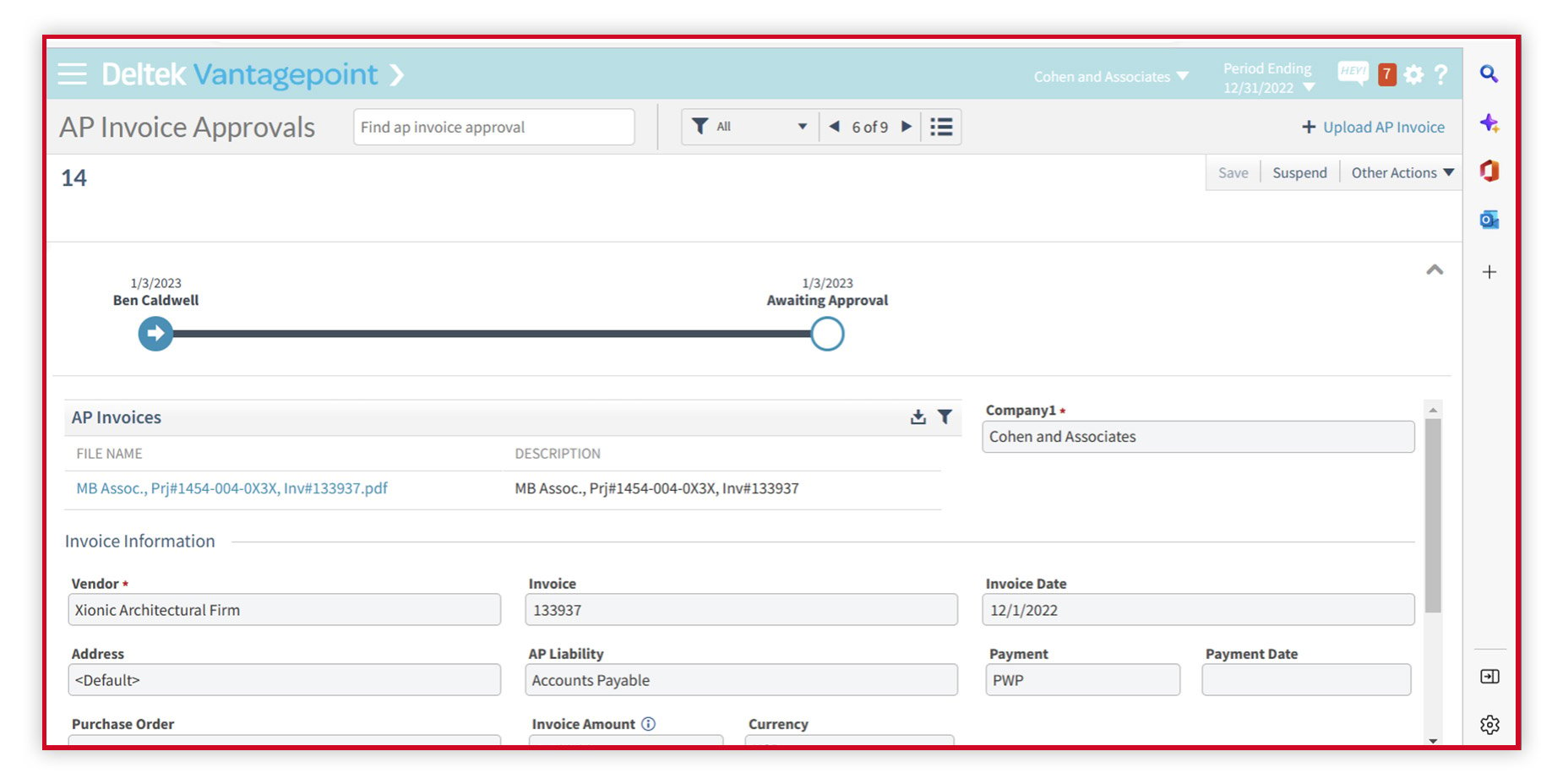
One of the first tools you can utilize to assist your firm in going paperless is to implement the AP Approval process. If your firm is currently routing invoices around the office in a file folder and tracking which invoices are “out for approval,” the AP approval will significantly help your firm! The AP Approval process allows firms to approve consultant or trade invoices within the system based on your firm’s approval philosophy. The approval workflow is very flexible, meaning you can route invoices based on a variety of options such as the vendor, project being charged, purchase order criteria if used, or to a specific employee. The workflow can also have multiple steps, such as having secondary approvals based on the dollar amount of the voucher.   

The first step of the AP Approval process is to attach the invoice electronically to the voucher. Therefore, it is recommended that the firm requests all invoices be sent to an email box, eliminating paper invoices even coming in the door! The system will track which step each approval is at, at any given time, so your AP staff will not have to track which invoices have been approved or which ones they need to track down. The AP Approval process is the first step to getting the accounts payable process to be paperless. 

DVP_Paperless_01 rev

Pay Vendors by ACH/EFT 

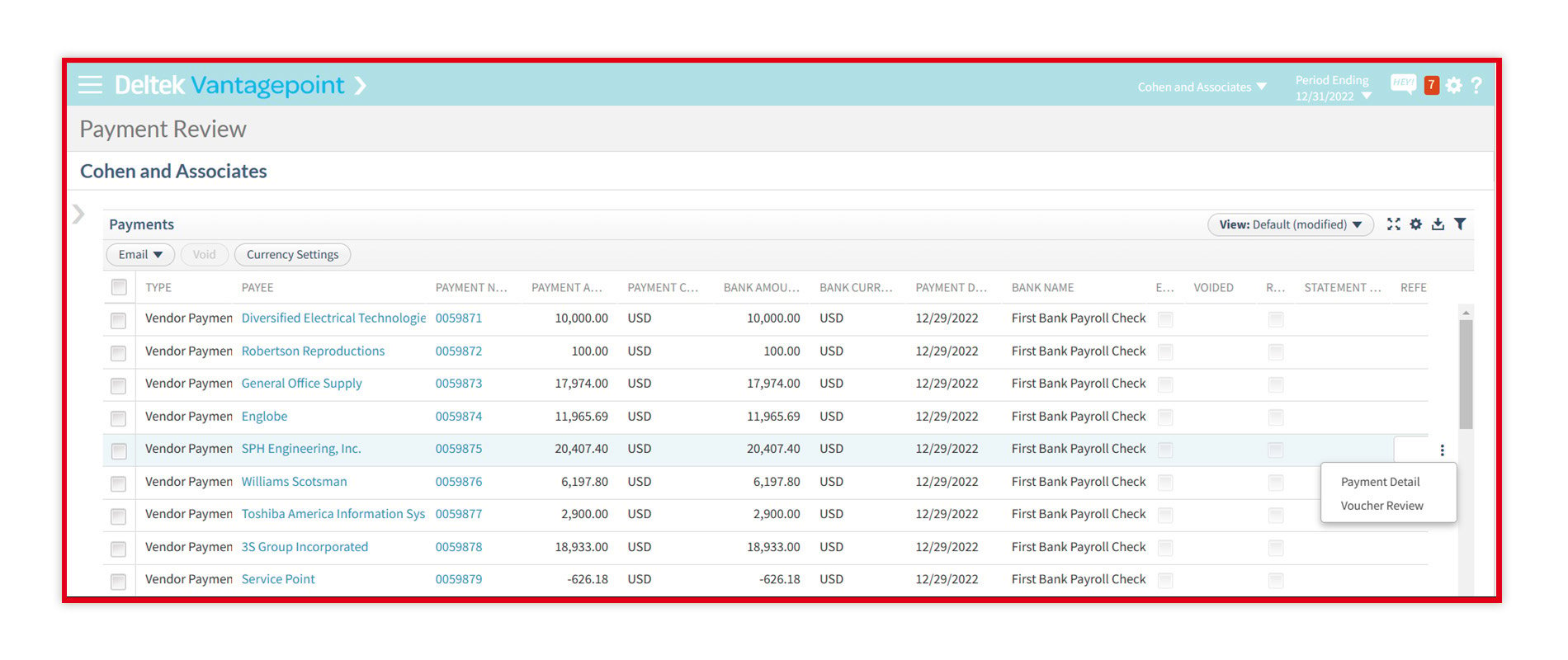
Paying vendors electronically by ACH/EFT is the most efficient method of payment processing. Electronic payments will eliminate the need for check stock, envelopes, copies of checks, and file cabinets for storage, not to mention adding efficiency to the payment process.  It is best practice to request banking information as well as a contact to email the payment remittance from all vendors. This information is then saved in the Vendor Hub. When processing payments, no checks or check copies will need to be printed. Instead of mailing the check and remittance to the vendor, the system can email the remittance to the email address entered in the Vendor Hub. The EFT file can then be saved directly from the payment screen and uploaded to your bank.   

If your current process is to print checks, print check copies, attach invoice backup to checks, sign checks, mail checks, and file the backup in file cabinets then implementing electronic AP payments will significantly reduce the time needed for your AP payment processing. Your new process would be something like this:

  • Process automatic payment run,
  • Email remittances to vendors,
  • Process EFT file, and
  • Upload to the bank website. 

Easy and fast!  

There are some “pro-check people” that say they like to physically sign a paper check to ensure the invoice and payment are accurate and they want to see all the approvals. The answer to that is to first put in place the AP Approval process as mentioned above, and if the check signer would like to approve the actual invoices, that person could be a step in the AP Approval workflow. Additionally, the “former” check signer can review the payments through the Payment Review screen prior to uploading the ACH/EFT file to the bank. The Payment Review screen will allow the approver to see each payment made, click on the vouchers, and drill into Voucher Review to view the documents and approvals as they wish. 

DVP_Paperless_02-rev

Implement Billing Approval Process  

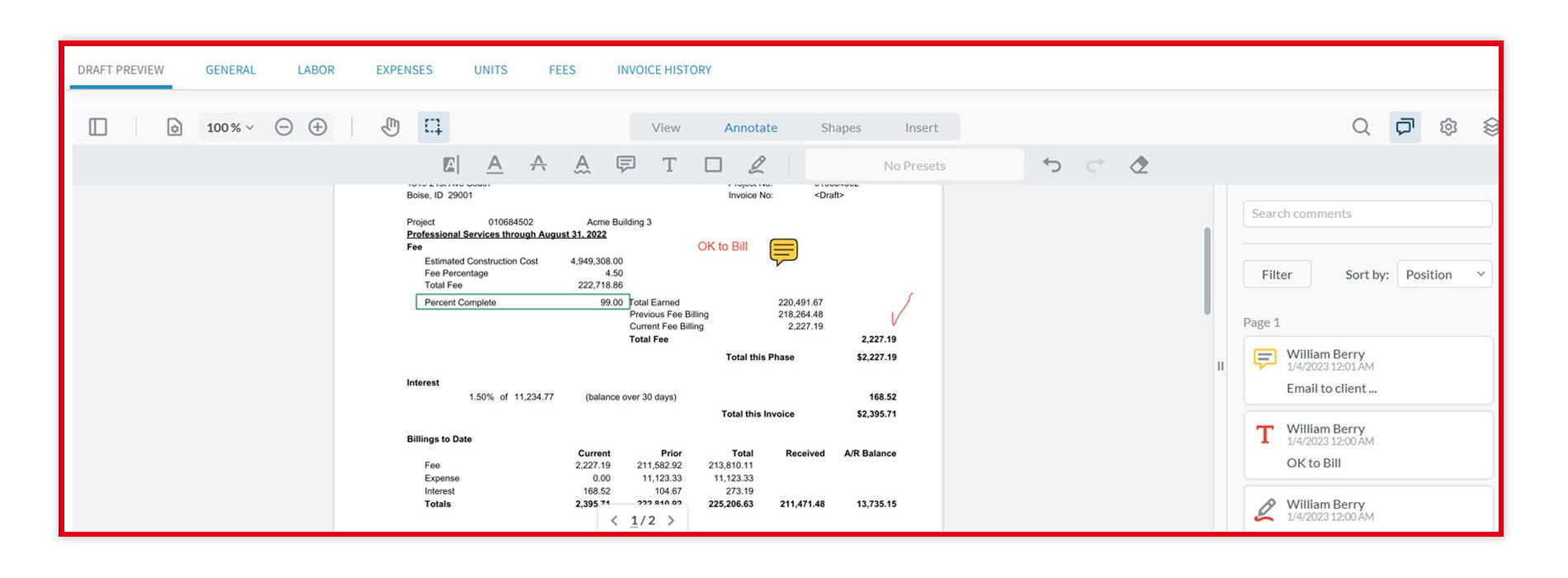
Another process that allows firms to go paperless is to implement the Billing Approval process to invoice your clients. Many firms print draft invoices and give them to the PM or Principals to markup and approve by passing around folders. How long has the PM had to approve the invoices? Who has not given the biller the folder back? Did they give the biller all the draft invoices back that were in the folder, to begin with? Stop this manual process and start using the Billing Approval process in the system  

The Billing Approval process allows firms to route the invoice to the approver within the Deltek Vantagepoint system, markup and approve the invoice electronically and route the invoice back to the biller for final review. The biller will always know which invoices are approved or still “in process.” There is also a report that can be produced to show how many days it took from the submittal of the invoice to final approval. Additionally, Deltek Vantagepoint has the ability to email the client the invoice directly from the system, so the invoice never has to be printed.   

How much paper would your firm save by not printing any draft invoices month after month!?!  It could be reams of paper, so it adds up fast! 

DVP_Paperless_03-rev

Consider Going Paperless as a Goal for New Year  

After you close out 2022, evaluate your firm’s 2023 goals. Consider adding “Going Paperless” to your 2023 agenda and utilizing some of these tools. Not only will you reduce paper, but your processes will also be more efficient! Cheers to a successful and profitable 2023! 

Top 5 Deltek Vantagepoint Mini Demos from 2022

Posted by Evan Creech-Pritchett on Jan 5, 2023 12:00:00 AM
2022-Top 5 Mini Demos_BannerAs we begin a new year, it’s important to look back and reflect on the past. What better way to do that than to watch the top 5 Deltek Vantagepoint mini demos from last year? 2022 was a bit of a grab bag, so this list includes everything from features that have been in Vantagepoint for a while to add-ons for the programs we use every day. Without further ado, here are the top 5 Deltek Vantagepoint mini demos of 2022!  

#5: Utilizing the Search Functionality 

The search functionality is one of the most overlooked features in Deltek Vantagepoint. There are categories of searches: standard searches, my searches, shared searches, and legacy searches. Standard search has a few different types of searches, such as the selection and active search, and generally apply to a variety of the hubs throughout Vantagepoint. My searches are your personal searches that you have saved for future use. Shared searches are ones that have been shared with you by your administrator or other power users in your firm and serve to create a standardization in your searches. The last type of search, legacy searches, is one that only applies to firms that made the switch from Deltek Vision to Deltek Vantagepoint. These are read only, so they will need to be rebuilt in order to modify them. 

Want to learn how to make and utilize these different types of searches effectively? Take a look at our demo here: Utilizing the Search Functionality. 

#4: Redistribute Planned Project Hours 

More often than not, a project’s budget and schedule change throughout its life cycle. Luckily, Deltek Vantagepoint allows users to easily adjust a project’s plan to fit their needs. The first step in this process is to change the dates for the project. After the dates are in order, the planned hours for the project should be changed. Some extra columns like contract and planned billing might be needed to determine the amount to adjust the planned hours by, so make sure to enable them when doing this step. 

This function is easy to use and saves a huge amount of time for everyone! For a step by step walkthrough on redistributing planned project hours, check out our demo here: Redistribute Planned Project Hours

#3: A Small, but Mighty Enhancement with Saved Views 

In previous iterations, Deltek Vantagepoint would save the last list view that you were in when you exited the program. Then when you re-opened Vantagepoint you would be returned to that same list view. In the Vantagepoint 5.5 update, a new feature has been added that allows multiple list views to be saved. This enhancement is useful in many areas such as hubs, expense reports and even interactive billing. Take a look around and find where saved views can help you! 

For a more in-depth look at how to create these lists and put them to use, watch our demo here: A Small, but Mighty Enhancement with Saved Views

#2: Introduction to Contract Management 

 The contract management tool in Deltek Vantagepoint is a fan favorite. It is useful for taking all the guesswork out of compensation with detailed breakdowns of how the total amount came to be. To get the absolute most out of this feature, it is imperative that the “Project Entering Method” is set to “Lowest Level Only” and “Synchronize Contract Values to Project Compensation” is set to “Yes.” Contract Type and Contract Status should also be configured in labels and list area. 

There are many more features and functions in the Contract Management tab. To hear about them all be sure to tune into our demo here: Introduction to Contract Management. 

#1: CRM Contact Accessibility Directly with Outlook 

Having to flip between two applications to find a contact is tedious and tiresome. Instead of wasting time trying to track someone down, connect Deltek Vantagepoint to your Outlook inbox. With this enhancement, Outlook will provide information from Vantagepoint on the contact, as well as information on related contacts. If there is no contact in the system, Vantagepoint will give the option to create a new contact and fill out the relevant fields. Projects can even be created from Outlook! 

There’s more than meets the eye with this upgrade. Watch our demo to see what you’re missing out on and how it works here: CRM Contact Accessibility Directly with Outlook. 

What’s Up Next? 

We hope you’ve enjoyed our blogs, Deltek Vantagepoint mini demos, and other content this past year! We’ve been cooking up a bunch of new content for 2023, so keep an eye on our social media accounts for more announcements. Looking forward to another productive year with you! 

10 Tips and Tricks for Deltek Vantagepoint Users

Posted by Lindsay Diven on Dec 14, 2022 12:00:00 AM

2022-DVP Tips and Tricks_Banner

Deltek Vantagepoint is a powerful tool with many capabilities to ensure the success of project-based firms. Despite the availability, many users often don’t use the system to its full capacity or simply overlook some of the features of Vantagepoint that will make their jobs easier. In this article, I’ll just scratch the surface of Vantagepoint’s capabilities by sharing 10 tips and tricks. Hopefully one or two of these will help you get more out of your system.  

#1 – Use the Application Finder to Get to Your Information Faster 

As part of its re-imagination process, Deltek took the redesign of the user interface seriously. This means getting the information you need faster and more streamlined. One way they did this was by adding an Application Finder or search bar to the left-hand navigation. You can use this application finder to type in a few characters of what hub you want to open. For example, if you want to open a project record, you can begin typing “Pro...” and it will display all the areas with the word project in it.  

And, with Vantagepoint 5.5, you’ll find little stars next to each sub-menu and you can click to fill in the star and make it available in the favorite menu. To toggle between the favorites menu and the normal menu, use icons directly below the find application and above the menus. Find application is active no matter which icon is selected. See below for an example. 

1 - Navigation

#2 – Personalize Vantagepoint in My Preferences 

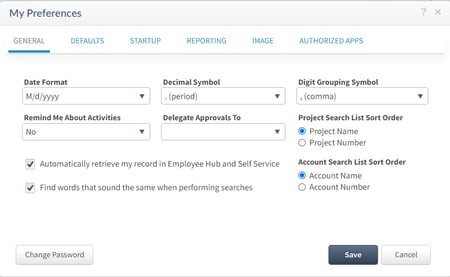
While the Deltek admin can configure the settings for the company, security roles, and even specific users, you can personalize some of the Vantagepoint experience just for you! By clicking on the gear in the top right corner, then selecting “My Preferences,” there are some ways that you can personalize your experience. Some of those include:  

  • Set your preferred project search sort order. You can choose to sort the project lists by Project Name or Project Number.  
  • Choose whether you select saved searches or records when running a report. 
  • Choose whether you want to default to an accounting period or be prompted to select an accounting period upon initial log-on to Vantagepoint.  
  • If your firm has turned on the Contact Qualification settings, you can choose the default Qualified status as either New Lead or Qualified Lead.  
  • You can set your default Country for all addresses in the system.  
  • You can choose what you want to load initially when you log into Vantagepoint. Options include the Application last used, the default Welcome Page, or you can select a specific application.    

2 - my preferences

#3 – Access Vantagepoint from Your Phone 

This is often one of the most overlooked features of Vantagepoint – the mobile apps! Deltek has created two mobile apps specifically for Vantagepoint. One is for time and expense and one is specifically for CRM. Both are available for both iPhone and Android users. Stop what you’re doing right now, open your phone, go to your app store, and then search and download at least the Deltek T&E for Vantagepoint 

The Deltek T&E for Vantagepoint allows you to complete and submit your timesheet on the go! And, with Vantagepoint 5.5, Deltek improved the navigation menu and usability to make completing your timesheet even easier. The T&E app also allows you to submit expenses from your phone too. It utilizes ICR so that you can snap a photo of a receipt and the app intelligently reads text and handwriting to populate the form using machine learning.  

Please note that you’ll need the CRM license to access the Deltek CRM for the Vantagepoint app. With this app, you’ll be able to view, add and edit records including firms, contacts, projects, and activities. And, with Vantagepoint 5.5 or later, you can snap a photo of a business card, and using the same ICR technology, it will either add or update the contact information.  

#4 – Don’t Miss an Important Alert or Assignment 

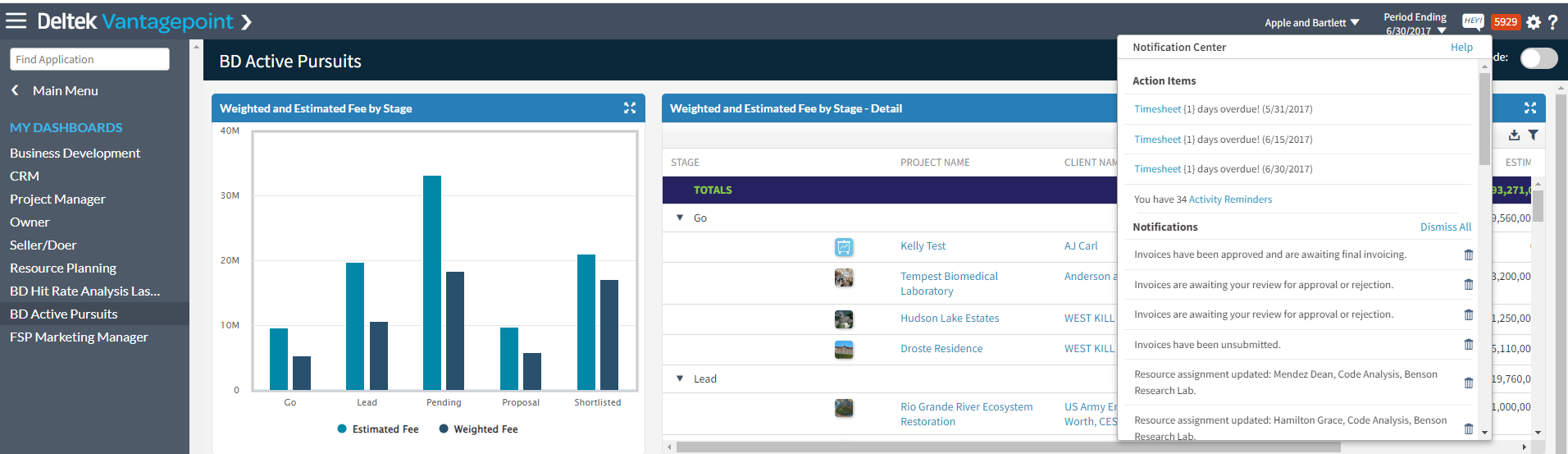
The notification center allows you to instantly see how many outstanding action items and notifications you have. You’ll know you have an important notification when a red number appears in the top right corner of Vantagepoint. This notification center is organized by Action Items and Notifications. The Action Items area includes activities, approval assignments, and past-due timesheets. The Notifications area includes workflow notifications, alerts, and failed and completed process server jobs. 

3 - notification center

#5 – Use List View to See and Update Many Records at Once 

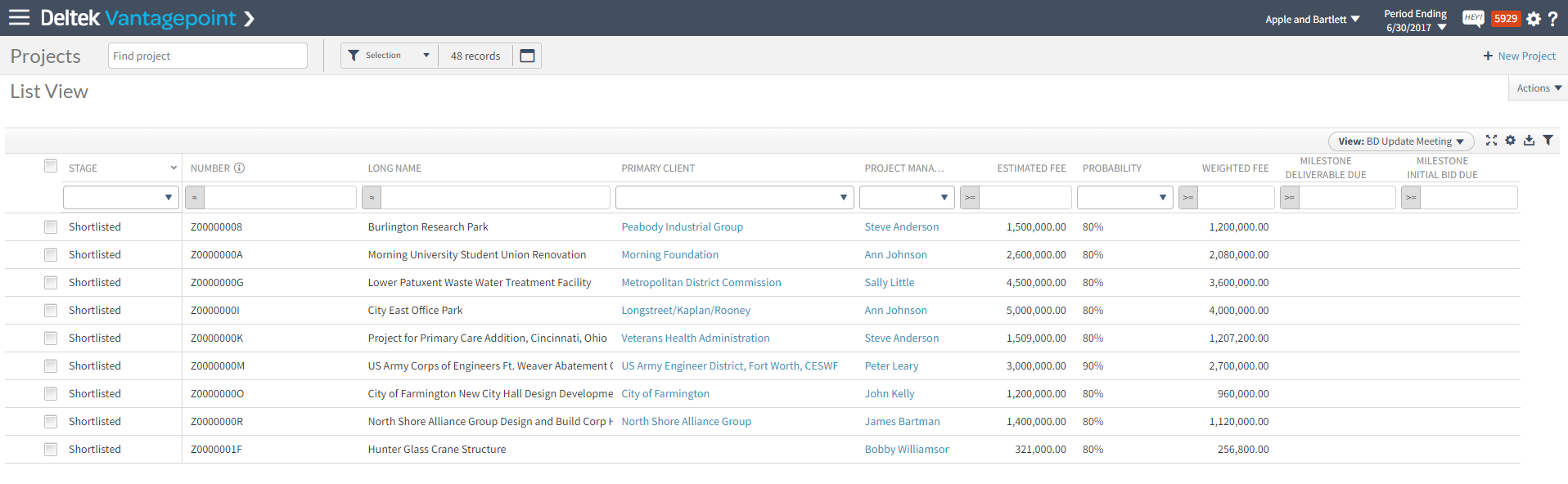
Every Hub area in Vantagepoint has the ability to show one record at a time or multiple records at once using List View. No matter what Hub you’re in, to toggle between record and list view, click the button with the three lines just to the right of the record numbers (see screenshot below). 

4 - list view

When you go into List View, you’ll see all of the records you have opened based on your search criteria. And, once you’re in List View, you can do a few different things. Below are just a few of the list view functions.  

  • Quickly sort and filter the records by clicking the little funnel icon on the right-hand side.  
  • Choose which columns (or fields) you want to see in list view by clicking the gear just above the list of records
  • Update the information in each cell by clicking in it.  
  • Download the records as they currently appear on the screen by clicking the down arrow just above the list of records. 
  • Save the view so you can apply it again or save different views based on the task for that session.   

5 - list view

#6 – Stop Wasting Time Searching for Your Information 

If you find yourself constantly looking for the same records or the same type of records over and over again, I encourage you to create a saved search. You can create saved searches for yourself or for others (based on your security settings) to quickly find the records you need. Some popular saved searches include: 

  • Projects where I am the Project Manager (or Principal or Marketing Manager), 
  • Contacts located in a certain city or state,  
  • Clients where I am the client manager, and 
  • Active pursuits which can be a list of projects in certain stages. 

Watch this mini-demo to learn more about searching and saving frequently used searches. 

#7 – Set Up Projects Faster Using Project Templates  

With Deltek Vantagepoint, there are most likely going to be more people creating new project records. This includes marketing, business development, project managers, and accounting. This differs from other ERP systems, including Deltek’s previous Vision system, where mostly finance or accounting open new projects. Because of Vantagepoint’s streamlined project lifecycle, you only need to open one project record that will be used from pursuit to project delivery.  

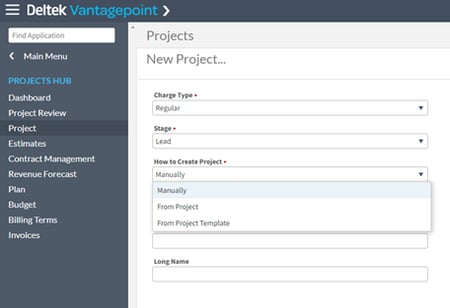
Make the project creation process faster and more consistent by utilizing project templates. When you create a project from either another project or a project template with a structure already determined, Vantagepoint will build that new project with that same structure and/or allow you to choose to edit the structure during the project creation process.    

6 - project creation

Through this process, you can choose the levels of the project that you want to use as well as add additional levels and edit values as needed before saving.  

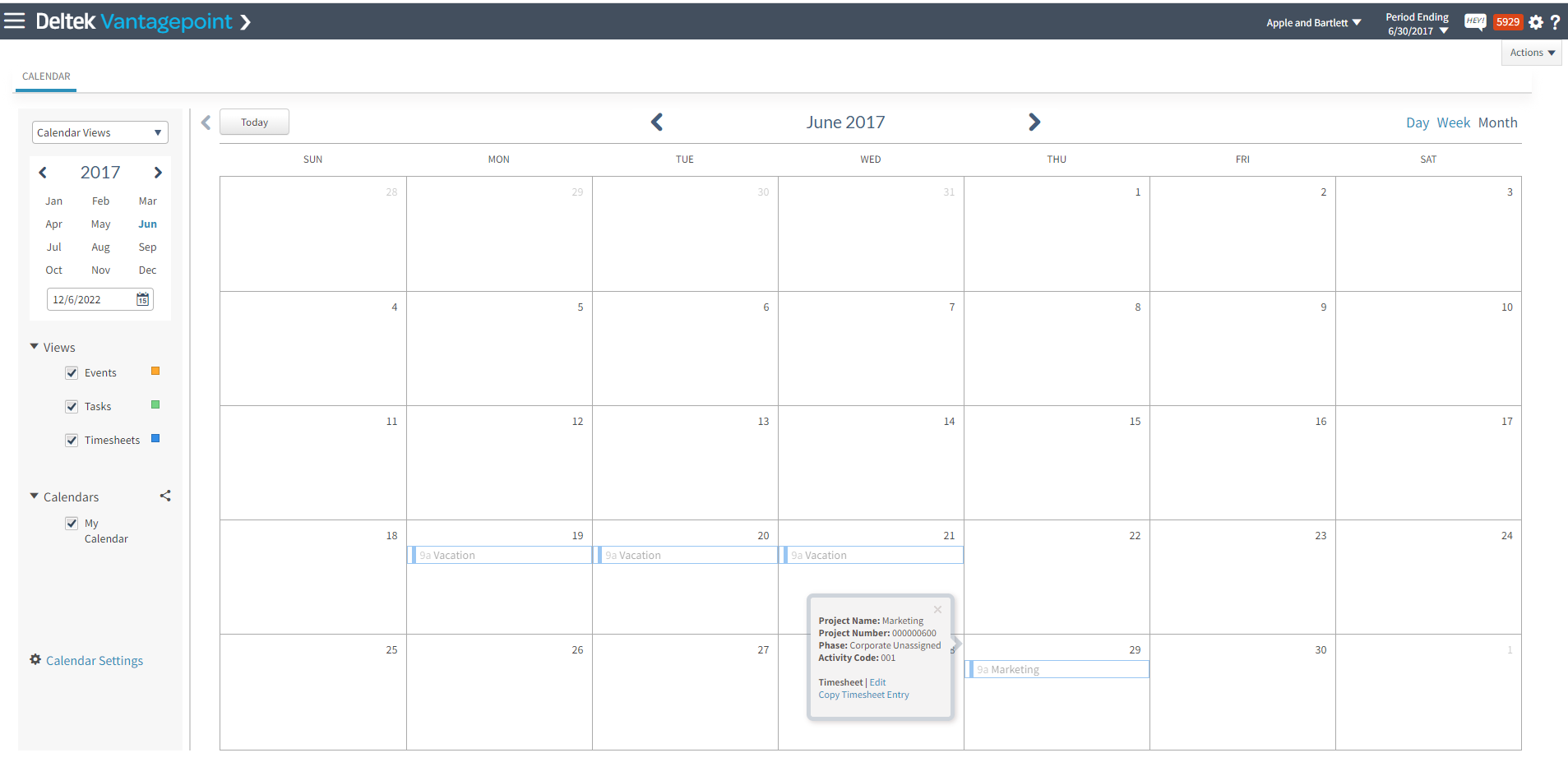
#8 – Use the Calendar to Complete Your Timesheet 

If you’re like me and find visual displays easier to read than line-item displays, then the Calendar is for you! The calendar feature is found under My Stuff and allows you to create, edit, and schedule events and activities as well as their associated tasks and timesheet entries. You can use the Calendar Timesheet Pane to add timesheet entries. In this view, you can see recent projects and upcoming assignments and drag these items to the calendar.  

7 - calendar timesheet

#9 – Share Vantagepoint Records Easily 

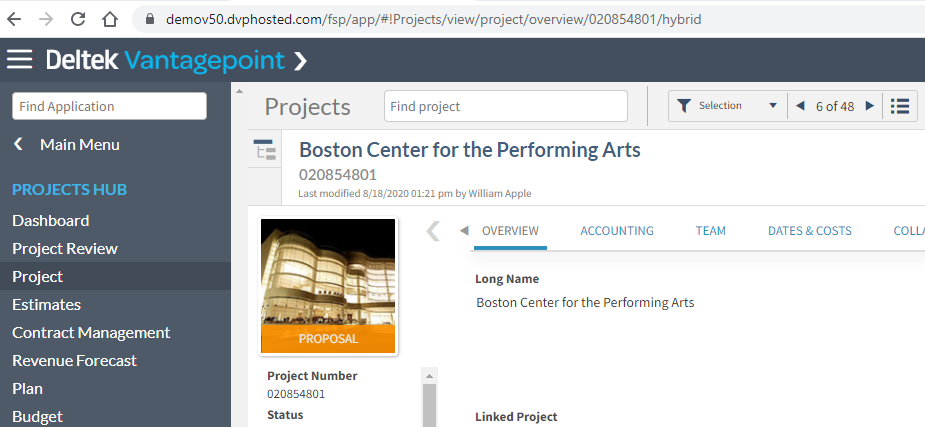
Because Deltek Vantagepoint is a web browser-based application, each record or screen has its own URL that is specific to your Vantagepoint instance. You can save your Vantagepoint URLs to specific applications, Hubs, or records similar to how you save other favorite websites, or you can share them with your coworkers.  

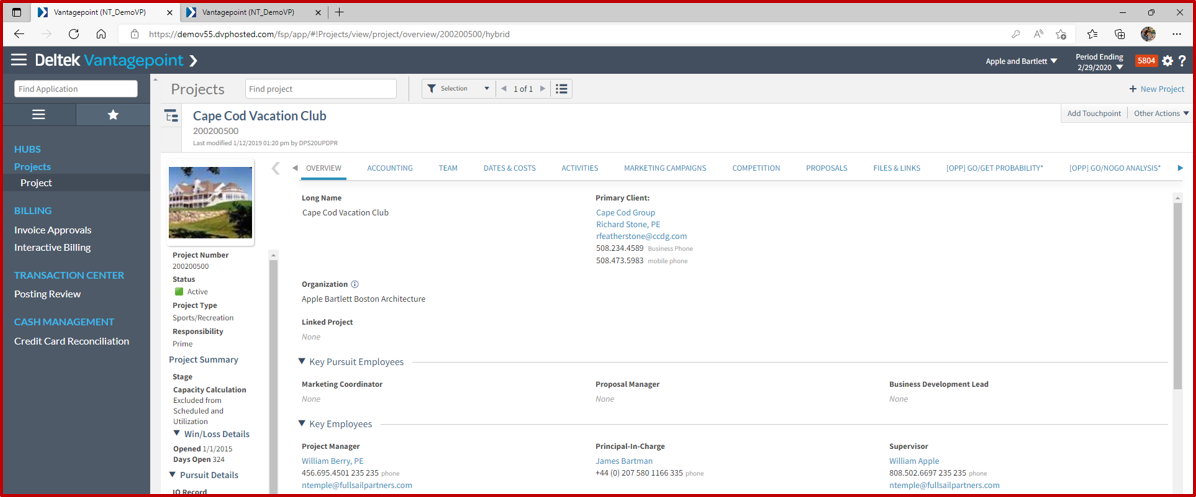
See the screenshot below, specifically the URL at the top of the image. I can copy and paste that URL link to send in a Teams Chat or email to one of my coworkers. When they click on the link, they will be prompted to log into Vantagepoint but then be taken directly to that project record.  

8 - project url

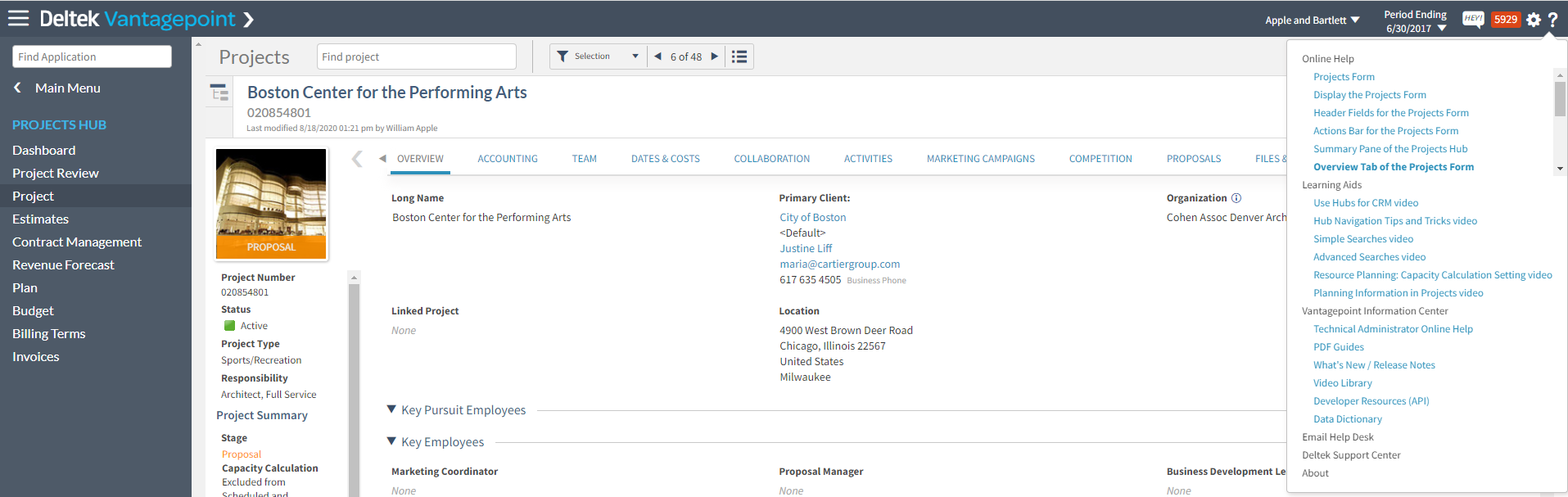
#10 – Get the Right Help, When You Need It 

Another part of Deltek’s reimagining was the help or support portal for Vantagepoint. No matter where you are in the system, you can click on the question mark in the top right corner and the Help options will change dynamically based on what Hub or application area you’re currently in. The example below shows project-related information including links to Online Help, Learning Aids, Information Center, and more.  

9 - online help 

If you find yourself not knowing what a specific record or application does, what to do next, or if you want to learn more, make sure the next step is to click the question mark in the top right corner.   

Do More with Deltek Vantagepoint 

These are just 10 tips and tricks to help you get more value from Deltek Vantagepoint. To see these and others in action, please click the image below to view our mini-demo series – Powering Project Success with Deltek Vantagepoint. Each mini-demo is less than 15 minutes and will show you how Vantagepoint empowers the different roles in your firm.  

New Features in Deltek Vantagepoint 5.5

Posted by Cate Phillips on Nov 30, 2022 12:00:00 AM

2022-DVP 5.5 Features -Banner

The new features in Deltek Vantagepoint 5.5 enhance usability, increase personalization for individual users and streamline project management and accounting workflows. It’s easier than ever for professional services firms to access the right information and complete common tasks quickly. Here’s an overview of what’s new.

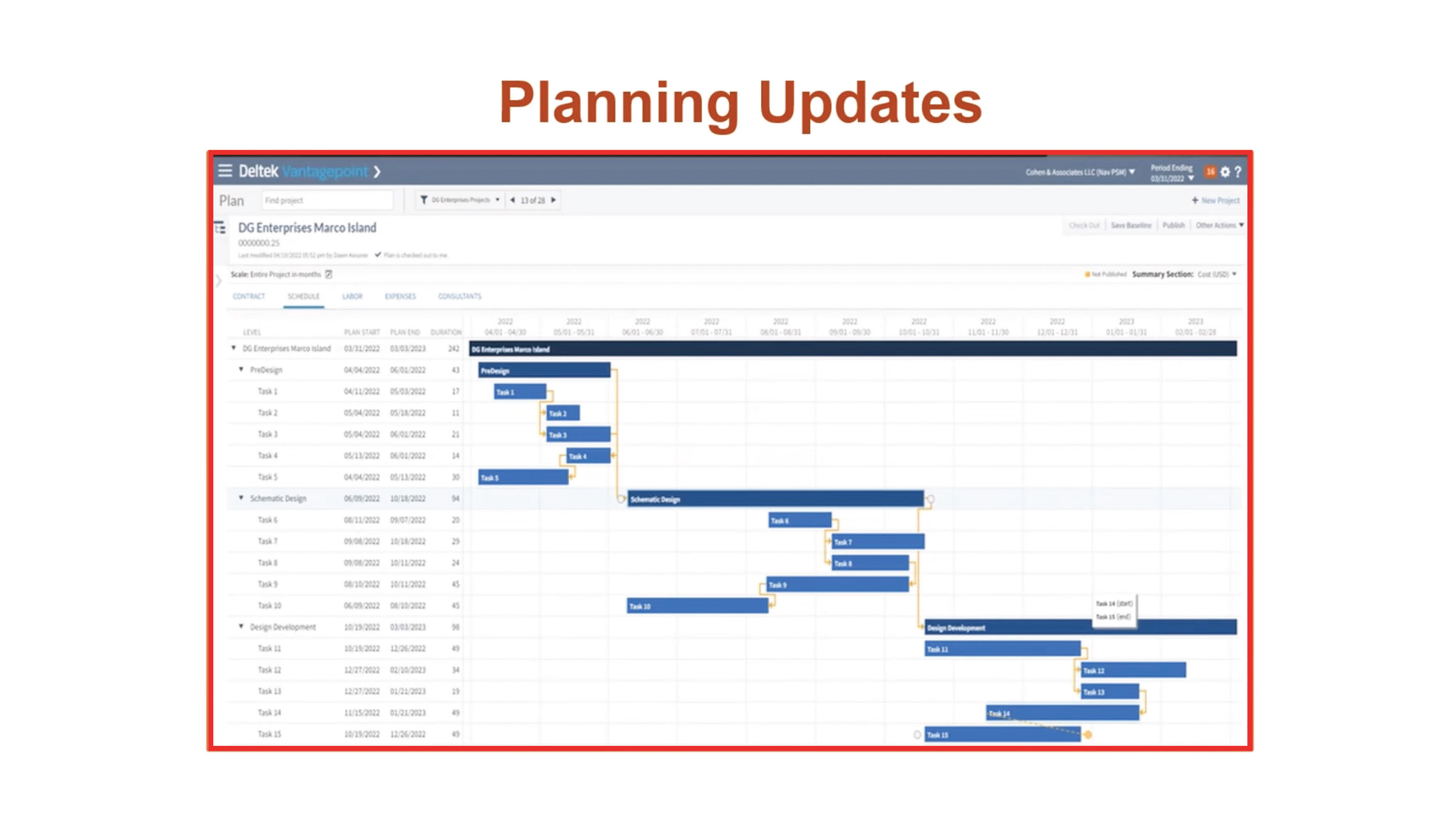
Schedule Dependencies

Users with the Resource Planning Module can create dependencies in the Gantt chart and manage a project’s critical path. Project managers can quickly visualize and modify the project schedule, work breakdown structure elements and the relationship between those elements. When an update is made at one level, all of the dependent levels are automatically updated.

Dependencies are also accessible in the Project Planning report. Users can view information about dependency relationships between work breakdown structure elements, projects and associated labor codes.

DVP55_BlogScreenshots_1

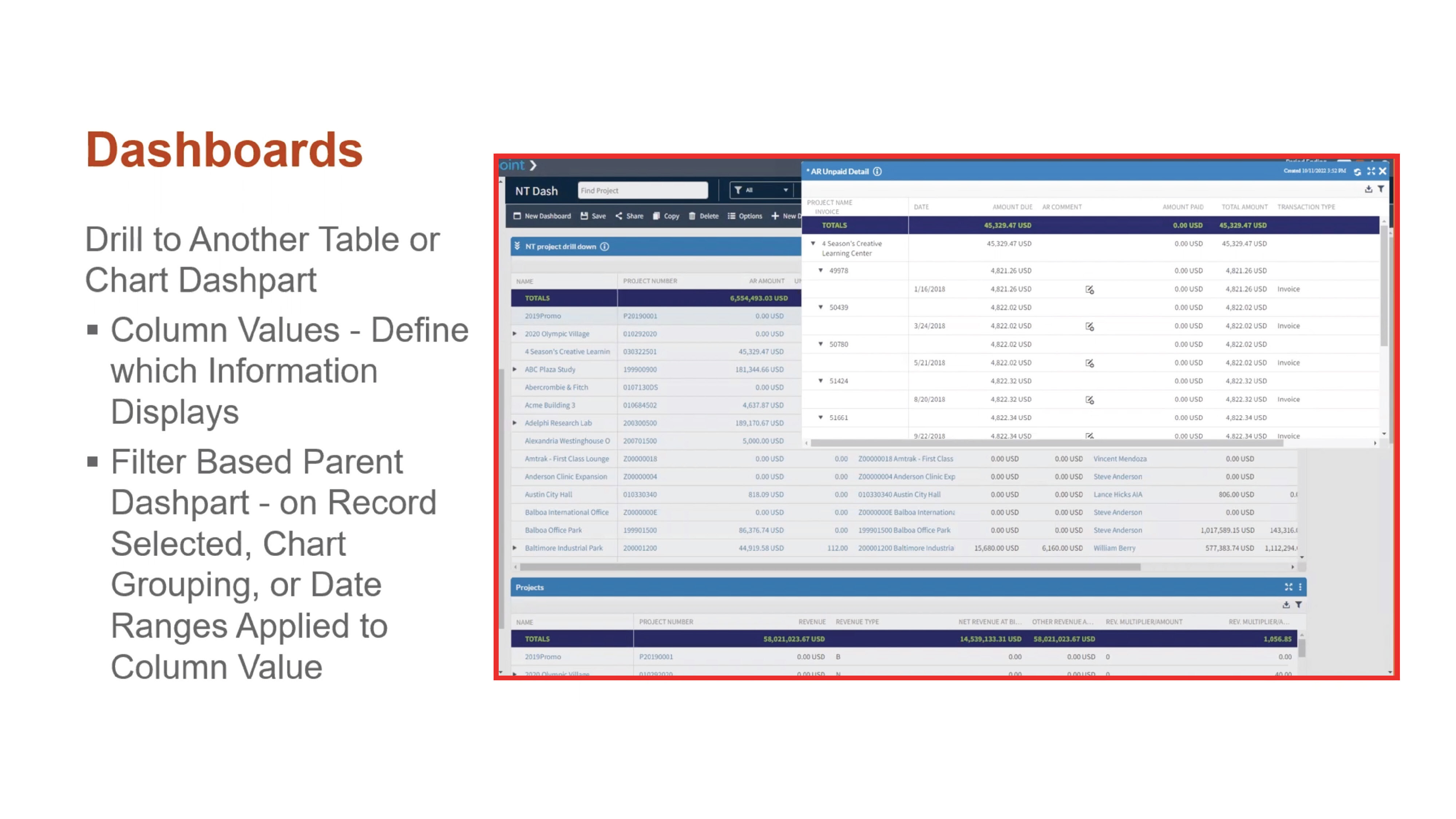
Drill-Down Paths

Help users access the right information quickly with drill-down paths. Users can determine which information is shown when they drill down into key summary metrics on a chart or table. For example, when a user clicks on a column displaying outstanding accounts receivable data, Deltek Vantagepoint can be configured to show them a dashpart with AR invoice detail.

DVP55_BlogScreenshots_2Personal Dashboards

Users can now create their own personalized dashboards without engaging an administrator or manager. This added flexibility will help expand adoption and free up administrator time since users can customize more of their experience with Deltek Vantagepoint.

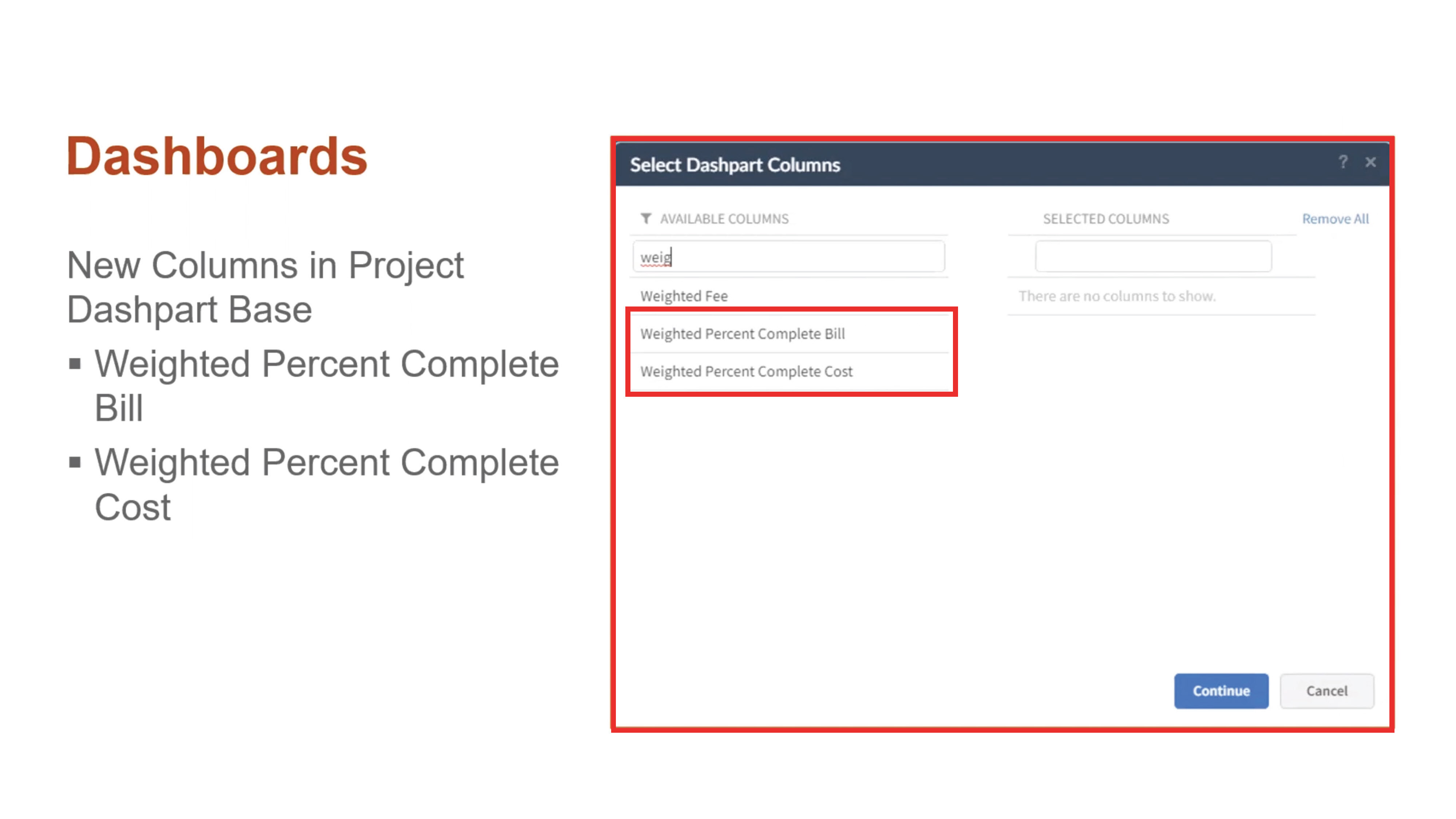
Update Percent Complete from the Dashboard

With Deltek Vantagepoint 5.5, project managers can easily manage percent complete with fewer clicks, ultimately improving reporting and billing accuracy. There are new columns in the project dashpart base for Weighted Percent Complete and Weighted Percent Complete Cost. Users can see and modify the percentage of completion per project billing or cost amount right from the dashboard.

DVP55_BlogScreenshots_4Streamlined Purchasing

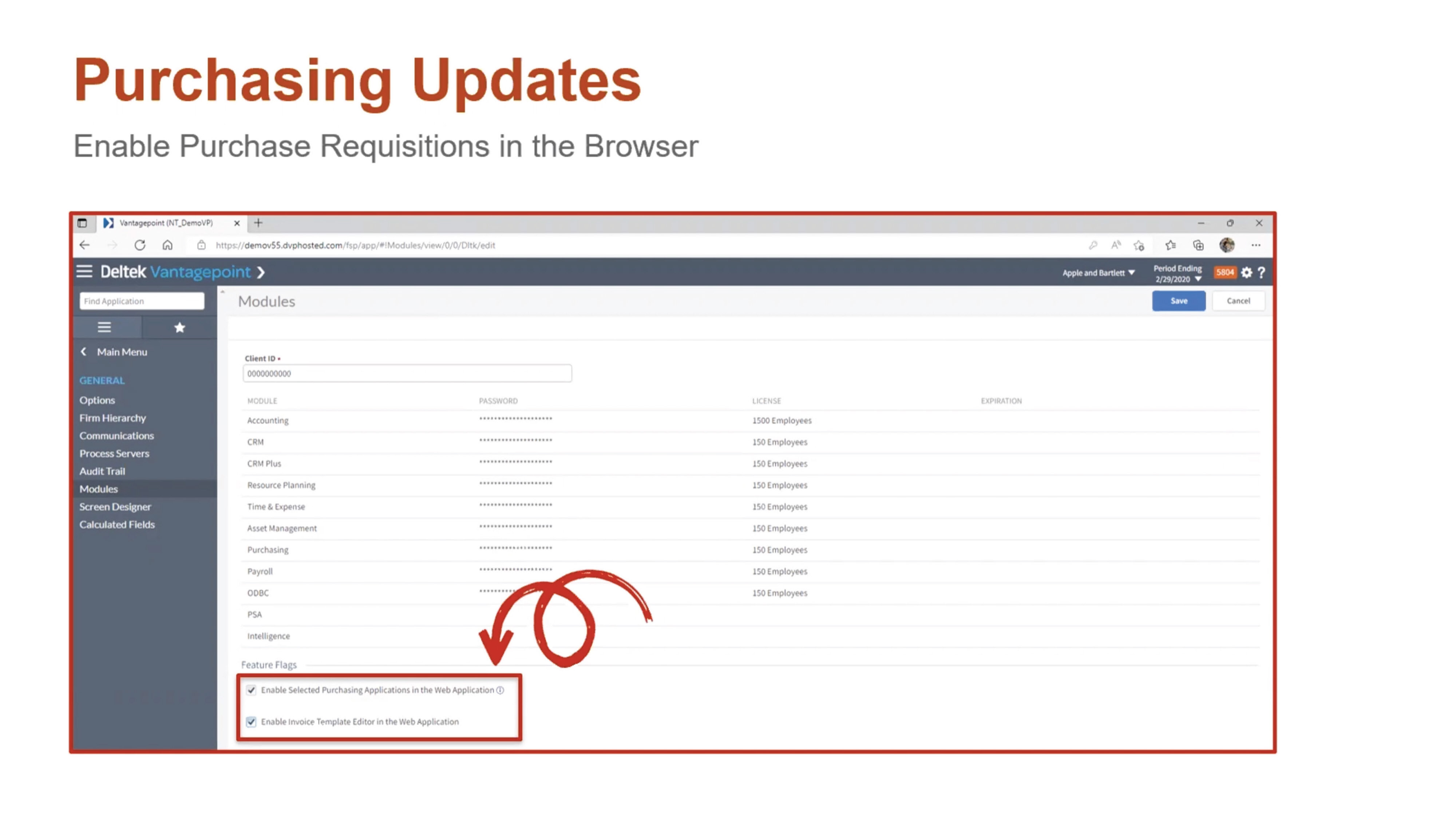
Deltek Vantagepoint 5.5 enables staff to perform purchase requisitions and process approvals within any browser. Purchasing Requisitions, Purchase Orders, Items and Items Master are now accessible in the navigation pane of the browser application.

DVP55_BlogScreenshots_5

Other Purchasing Updates

Additional purchasing updates in Deltek Vantagepoint 5.5 include: 

  • New layout for suggested vendors
  • Ability to add a vendor on the fly
  • Ability to attach documents of any status
  • Ability to view purchasing reports
  • Redesigned interface for the purchase requisition form

Accounting Updates

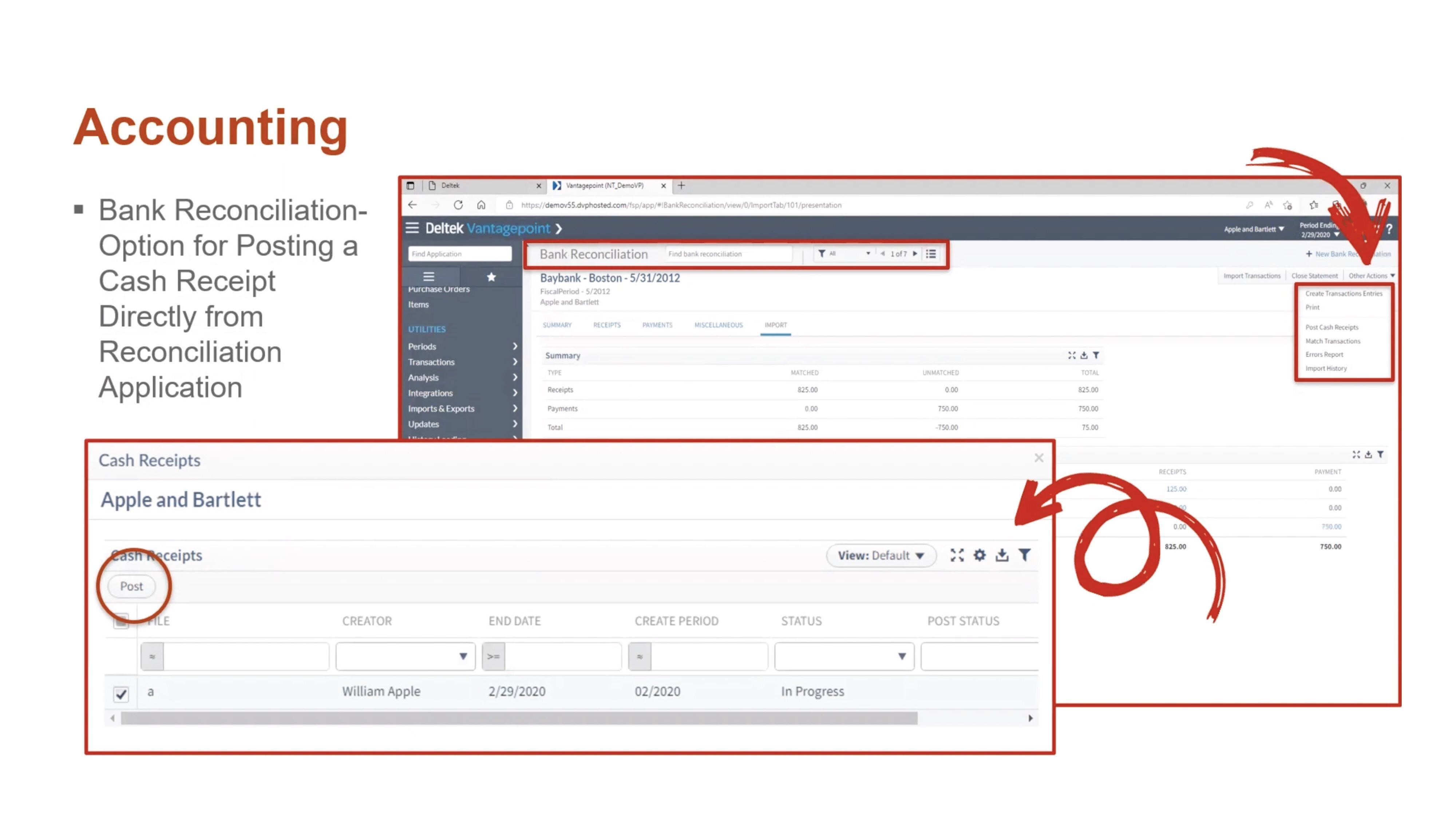
Deltek Vantagepoint 5.5 offers several new features that streamline accounting processes. Users can now post cash receipts that were created in bank reconciliation. This option is available for those that have rights granted to their role in the Accounting tab from Settings >Security> Role. The Transaction Center Approval option must also be set to “No” in Settings and Accounting Transactions.

DVP55_BlogScreenshots_6

Other Accounting Updates

The other accounting updates in Deltek Vantagepoint 5.5 include: 

  • Expanded reporting in timesheets and billing
  • Print capability for Billing Category Rate Table reports
  • New overtime premium calculation that uses the cost rate in the Billing Labor Override Table instead of the Cost Rate in the Employee Hub for the employee

Email Templates

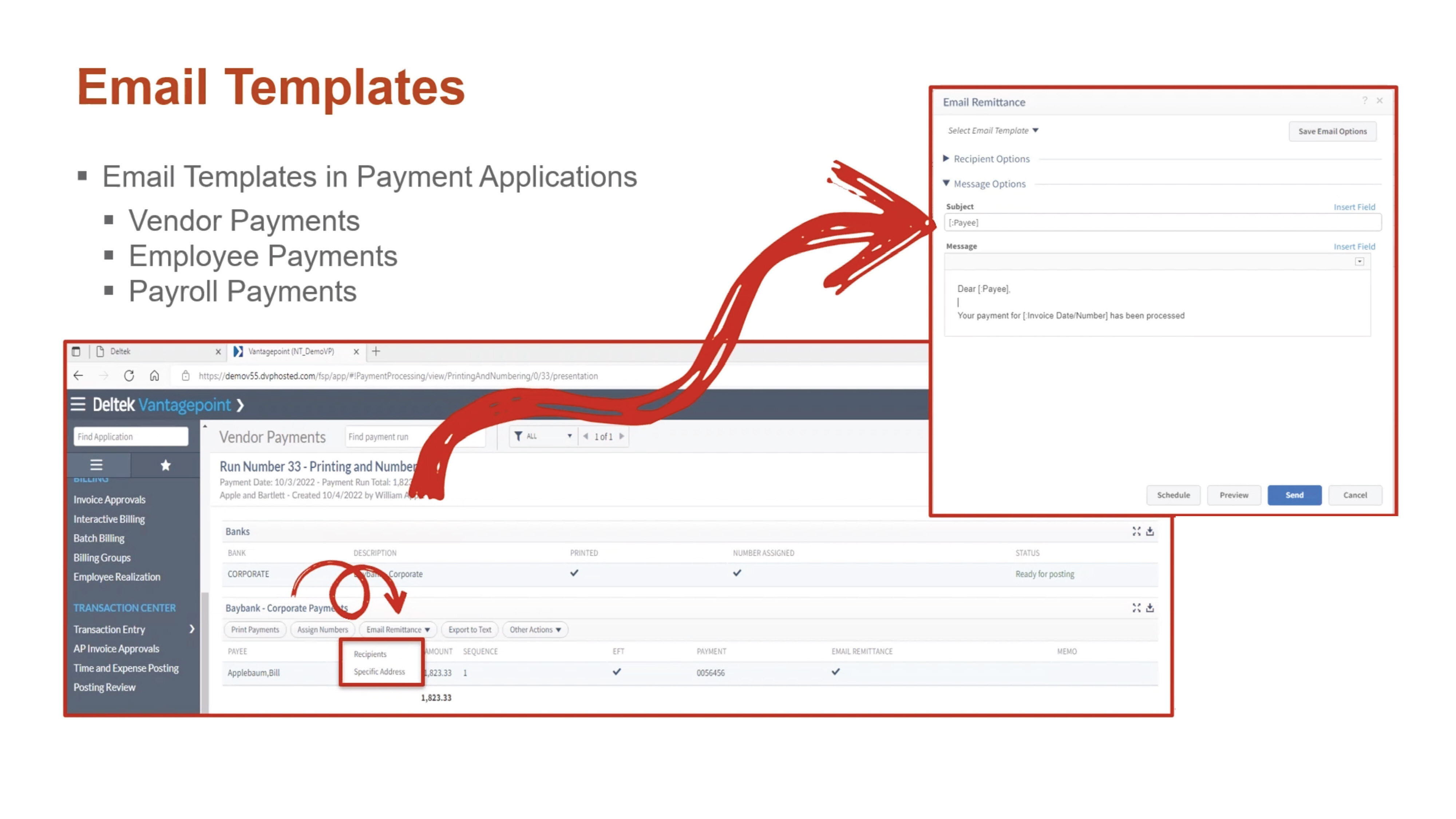
To help support digital payment processes, Deltek Vantagepoint 5.5 allows users to use email templates when sending electronic payment remittances by email. Templates can be configured to reuse standard information, such as regular text or database fields. Email templates are available in the Vendor Payments, Employee Payments and Payroll Payments applications. Users can save templates for personal use, for all users with the same role, or for all users within the firm.

DVP55_BlogScreenshots_7Approval Center Updates

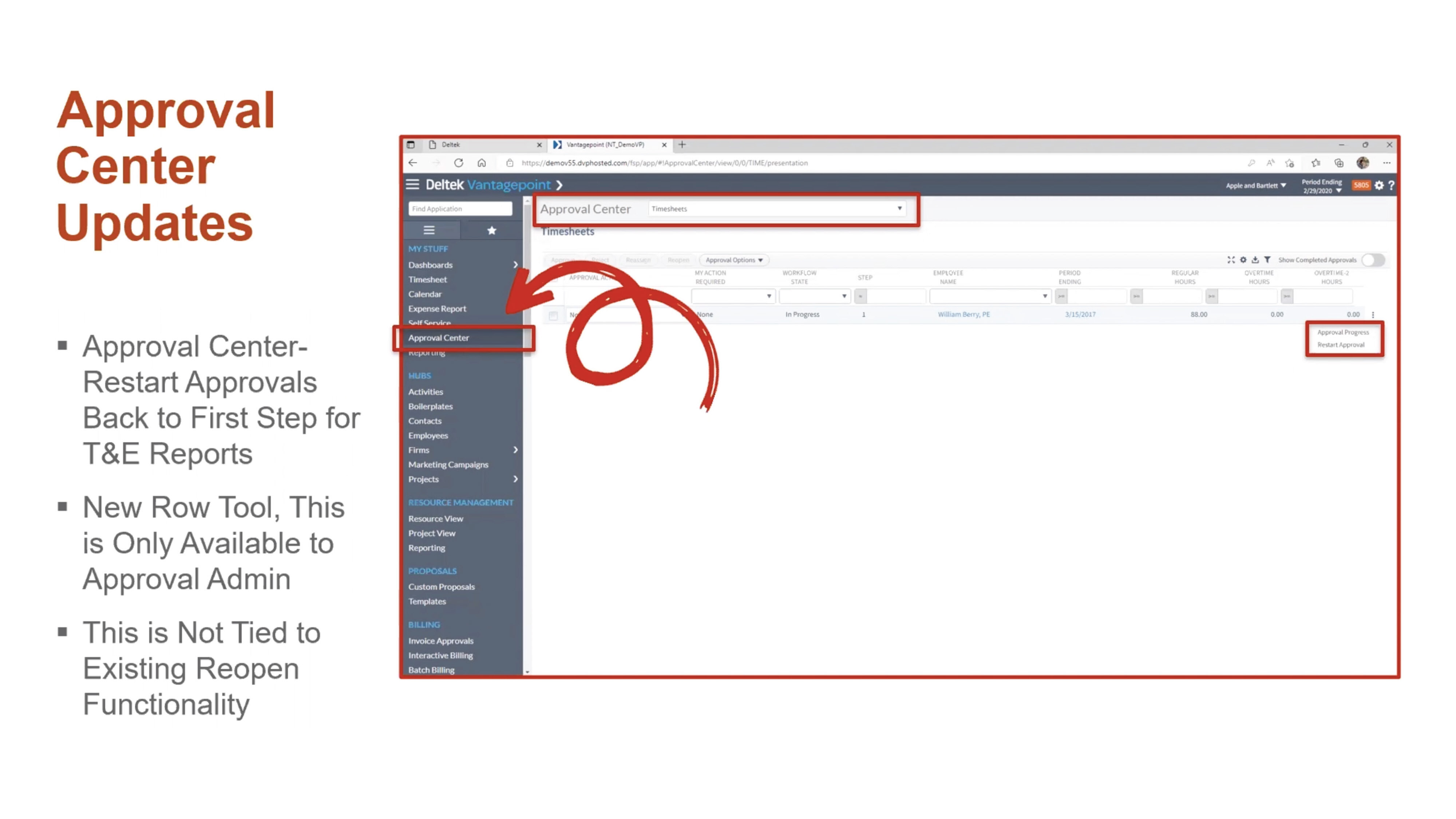
Users can restart approvals for timesheets and expense reports. This process removes all approved history and comments that are associated with the record and begins the process from the first step, no matter where the record is in the approval process.

DVP55_BlogScreenshots_8

General Usability Updates

Deltek Vantagepoint 5.5 also comes with a number of usability updates:

  • See notifications immediately instead of every five minutes with real-time alerts.
  • See all users viewing a record.
  • Set favorites in navigation to find commonly viewed applications with ease.
  • Set minimum/maximum and default values for standard numeric fields.
  • Use predefined searches within Advanced Search.
  • Print timesheet reports from the Floor Check dialogue box.
  • Access Labor Planning videos in Online Help.

Learn More About the New Features in Deltek Vantagepoint 5.5

This is just a high-level overview of the many new features in Vantagepoint 5.5. To learn more about what Vantagepoint has to offer, click below to talk to one of our consultants today.

Top Technology Trends from the 43rd Deltek A&E Clarity Study

Posted by Heath Harris on Nov 16, 2022 12:00:00 AM

2022-ClarityReport_Tech_Banner-01

The net revenue growth forecast for A&E firms is the highest it’s been in 10 years. Based on the findings from the 43rd Deltek A&E Clarity Study, the industry has rebounded from the pandemic with full pipelines and an optimistic future outlook. Meeting that demand comes with serious challenges, with labor shortages and rising costs being most prominent.    

Firms are turning to technology to empower their teams and improve project delivery. They’re prioritizing the right investments over simply purchasing the newest technology. Here are the top insights from the study and some guidance for ensuring that technology investments deliver positive ROI. 

Top Technology Challenges for A&E Firms 

The top technology challenge professional services firms are facing is the inability to invest time in learning. With full project pipelines, firms are dedicating resources to completing client work, limiting the time they can spend on learning new technologies. Small firms struggle with this issue the most, though it’s a prominent issue for medium and large firms as well.  

Technology costs, which topped the list in last year’s report, was the second most commonly cited challenge. Firms are also struggling with prioritizing which trends apply to their organization. With so much technology to choose from, many firms are understandably unsure which trends to pursue. Finding the right fit, whether it be data science tools or digital twins—for the firm and for their client base—isn’t easy.  

Other challenges include educating employees and clients about trends, lack of champions to drive technology adoption and limited corporate openness to emerging technologies.  

A&E Firms Are Focused on Getting it Right 

Firms are honing in on the initiatives that enable them to take a pragmatic approach to technology adoption and integration.   

When asked about their top three technology initiatives:  

  • 64% said creating strategic technology implementation plans.  
  • 47% said educating staff on technology trends. 
  • 46% said identifying and developing technology subject matter experts. 

This pragmatic approach is a good way to enter into digital transformation. However, firm leaders should be careful not to get stuck in a cycle of endless planning. One way to cautiously approach technology is to look for ways to expand usage of current tools. This can provide quick wins and competitive advantages without requiring significant investment or onboarding time.  

Internal Champions Can Take on Challenges and Lead Key Initiatives 

To take on technology challenges in the short term, firms should engage tech-savvy employees as internal technology champions. Technology champions can help improve the ROI of technology in the following ways:  

  • Fill current skill gaps by leading the charge to incorporate technology into project execution.  
  • Promote and expand adoption of existing technologies throughout the business.  
  • Identify the most viable technology investments and trends for the firm.  

Only 36% of firms ranked this as one of their top three initiatives, meaning that many are missing an opportunity to address current gaps in technology planning and adoption.  

Which Technologies Should A&E Firms Focus On? 

To help guide technology planning, A&E firms should look at technology as falling into two buckets. Technology that supports project delivery, such as smart infrastructure and digital twins help firms remain competitive and address common challenges in the building process. Business-optimizing technologies, like data science and next-level project management tools can be used to automate repetitive tasks, empower workers to make more informed decisions, and ultimately improve client satisfaction.  

For more insight into which technology areas A&E firms should focus on, watch the webinar 

Focusing on these areas will enable firms to address some of their biggest concerns: 

  • Attract and retain talent by appealing to the next generation of employees, who want to work with companies that give them access to the latest technology.  
  • Prepare for disruption. As innovation continues to transform the A&E industry, the right technology will help firms future proof their businesses.  
  • Increase revenue streams by identifying the ideal services and delivery methods that lead to competitive advantages and higher profits.  

Dive Deeper Into the Technology Insights from the Deltek Clarity Study 

Firms aren’t investing in technology for technology’s sake. They’re focused on making the right investments that will enable them to increase productivity and compete for projects and talent. With the right guidance, they can take on the opportunities and challenges ahead. For more technology insights, download the full report.  

Deltek Vision and Vantagepoint Year-End 2022

Posted by Scott Gailhouse on Nov 2, 2022 12:00:00 AM

2022 - Year-End_Banner

Year-end is the final accounting process to close “the books” at the end of each year. With 2023 just around the corner, it is never too early to plan for your year-end close. Planning and organization on your part can make the year-end process less challenging for the entire accounting staff.   

Take the Time to Document and Get Organized 

As always, you should take the time to document your year-end procedures. Not only the tasks performed in Deltek Vantagepoint and Vision, but all accounting tasks you perform should be documented so that you have a comprehensive guide that you can refer to every year. It is also vital that you create an accounting calendar.  

The accounting calendar is not just for year-end, but for month-end and quarter-end tasks as well. This calendar is a schedule of anticipated dates for financial activities. You should also develop a year-end checklist to make sure you don’t miss anything. One other tip to make this process go smoothly is to make sure that you are performing your month end reconciliations on a timely basis. 

Common Year-End Tasks 

Some of the more common year-end tasks for most companies are: 

  • Reconcile All Cash Accounts - Verify all transactions have been posted into Deltek Vantagepoint/Vision to ensure your general ledger balances match your bank statements. Make adjustments as required. 
  • Credit Card Reconciliations – In order to ensure all credit card transactions are captured, make sure all expense reports are entered and posted. 
  • File Reconciliation Report – This report should be run at month-end and at year-end. This report identifies discrepancies between the GL and the subledger reports. 
  • Final Invoicing – Process all client invoices for the fiscal year. 
  • Review Outstanding Accounts Receivables - Follow up with clients who have outstanding accounts receivable beyond 30 days. Send past due statements and/or simply give them a call. Enter the results of your collection efforts in the comments section of Vision Invoice Review. Year-end is an excellent time to collect your outstanding receivables. If you determine there is uncollectable AR, be sure to write those invoices off. 
  • Review Unbilled Detail - Time and expense transactions that cannot be invoiced to clients should be written off at this time. 
  • Fixed Assets – Fixed Assets are larger purchases that are made throughout the year (i.e., equipment, automobiles, furniture, computers, etc.). Check to see if all fixed assets reported on the balance sheet are still owned. If not, record the sale or disposal of these fixed assets. Verify the depreciation on your fixed assets as well. Then make any necessary adjustments. 
  • Employee Expenses and Accounts Payable - Verify that all accounts payable vouchers have been recorded in Deltek Vision/Vantagepoint. Make your 401(k), SEP IRA, and Simple IRA contributions, if you have not done so. Try and pay all your vendors and employee expense reports by year-end. 
  • Notes Payable - Verify notes payable (i.e., loans) amounts on your balance sheet match the statements from your lenders. Then make adjustments if necessary. 
  • 1099 Forms – Order 1099 forms. Make sure all W-9 forms from your vendors and/or contractors that are paid $600 or more throughout the year are on file in the Firms Hub in Vantagepoint or the Vendor Info Center. Don’t forget 1099s should be mailed by January 31st. 
  • W-2s – Order W-2 forms if you run payroll in Vantagepoint/Vision. W-2s should be mailed by January 31st. 
  • Budget for Next Year - Create your GL budget for the new year. 

Be Prepared to Close Out the Year 

In Deltek Vantagepoint and Vision, opening the 1st period of your fiscal year also opens the new fiscal year. Depending on your security rights, you can still process in the prior fiscal year if needed. 

There are several initialization utilities that need to be performed. For example, Open New Period (fiscal year), Open New Benefit Year, 1099 Initialization and Open a New W-2 Quarter/year if you are using the payroll module. Deltek Vantagepoint and Vision will generate a posting log for the initialization utilities. If your Vantagepoint or Vision database is configured for Multicompany, the initialization utilities need to be run in each company. The only exception is the Open New Period utility, which opens for all companies at once. 

Deltek will issue a Year-End update at the end of December containing tax updates for payroll users. Also, be on the lookout for Deltek’s Vision and Vantagepoint Year-End guide for more detailed information on year-end closing. 


Using Deltek Vantagepoint Systems to Maintain Better Contact Data

Posted by Evan Creech-Pritchett on Oct 19, 2022 12:00:00 AM

2022 - Contact List - Banner

It’s hard to believe that it is already so late in the year. It feels like not so long ago we were trying to beat the heat with cool drinks on sandy shores. But now the weather is beginning to cool down and the leaves are changing color, and that can only mean one thing: time to hunker down and manage the firm’s holiday contact list! Hopefully, this process has already been started but if not, this article shares a couple of tips on how using Deltek Vantagepoint features and functions can help maintain the firm’s holiday contact list and keep it clean for the future.  

Data Clean Up 

Before getting into the nitty gritty of data cleanup, let’s do a quick review. Every contact needs to have at least five parts: contact name, job title, firm name, email address and firm address. These five fields are standard in Vantagepoint, and with this information, marketers can build basic lists to use for both email marketing and direct campaigns.  

Then there are pieces of contact information that can be considered “nice to have.” These include attributes like market, rating, source, contact owner, mailings and segment type. These are not essential to the contact, but they can help narrow down who they are and what exactly the contact means to the company. 

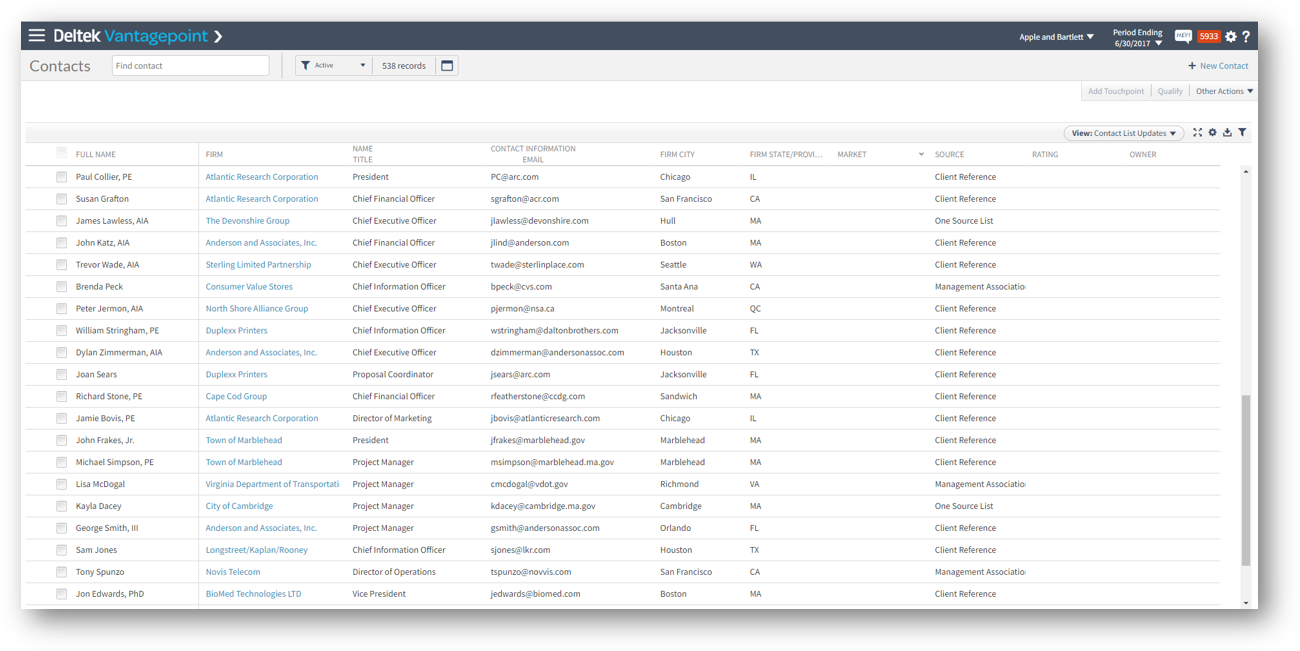
Once marketers have identified their must-have and “nice-to-have” contact fields, head over to Vantagepoint and view the contact in list view. Using this Vantagepoint feature, allows marketers to quickly see what contact data is missing or outdated. See the screenshot below. 

Contacts - list viewThis feature isn’t just in the Contacts hub either, so be sure to look for it in other hubs that may need some cleaning up as well.  
Send More Emails  

To avoid ending up with a bunch of old contacts, the best advice is to send more emails! Of course, don’t just spam the contacts, because that would just drive them away. Instead, think about sending newsletters weekly and/or monthly. By sending regularly email marketing campaigns to contacts, marketers will get contact information back such as bounced email addresses. This piece of information could indicate that the contact has moved firms or retired. Doing this throughout the year will help make the effort of creating holiday contact lists less daunting.  

Create Marketing Campaigns for Segmented Lists 

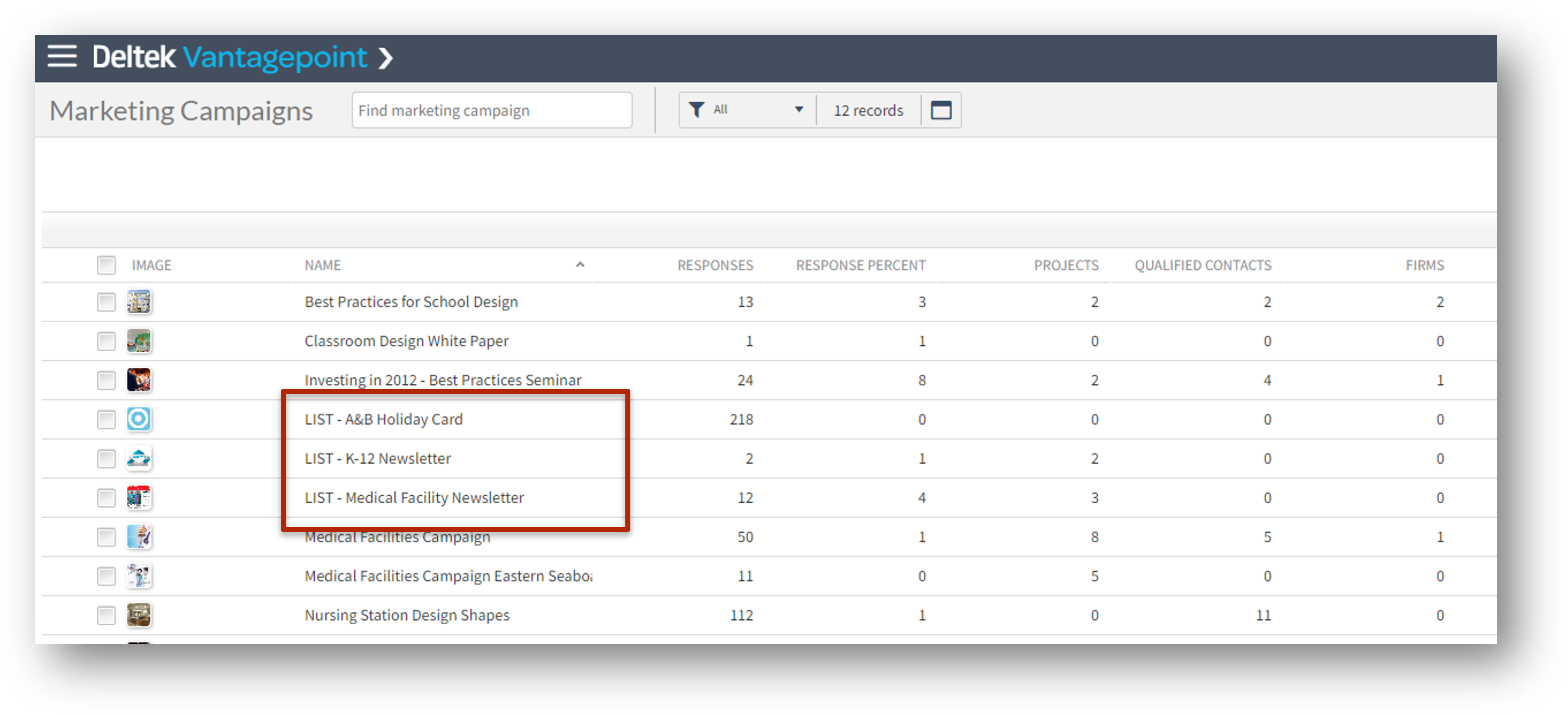
In the same vein as the last tip, use Vantagepoint Marketing Campaigns for list segments. To do this, create a new Marketing Campaign record with the name “List-Holiday Card,” for example. Then associate different contacts based on their segments (whether it be geographic, demographic, etc.) to add them to a list aka the Marketing Campaign record. With these new marketing campaigns more emails can be sent, and as contacts are created and updated, they can be added to different lists. 

Contacts - Marketing Campaigns - Lists

Monitor New Contact Creation with Scheduled Reports 

Another good practice is to have Deltek Vantagepoint monitor what new contacts were created in the database. Deltek Vantagepoint allows the user to send scheduled reports of what contacts were created in a set period of time (i.e. weekly, monthly, etc.). When these are set up, a report will be sent to the user consisting of all the new contacts and will include who initially created the contact and if there is any missing information that needs to be added. In the case that any of the aforementioned key fields of the contact are missing, the user can follow up with the contact creator and ask them to fill out the required information. This feature can also be used for projects and employees, but in our case monitoring contacts is best. 

Use Workflow Warnings and Errors for Must-Have Contact Information 

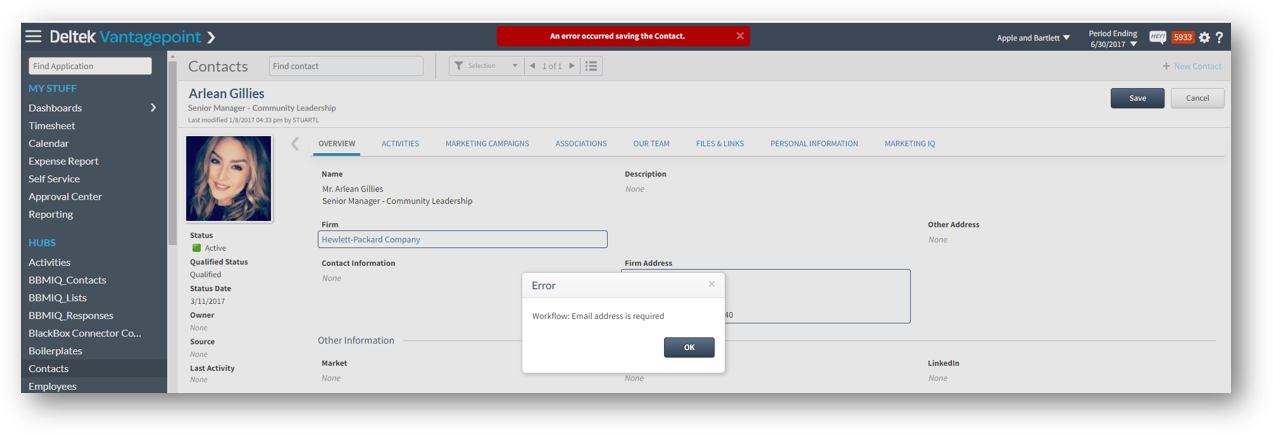
Finally, make sure you are using workflows to your advantage. These workflows can be set up to indicate errors and warnings when a contact has missing information. Warnings will simply alert the user that the contact needs more information, but they will allow the contact to be saved nonetheless. Errors on the other hand will completely stop the user from saving the contact. Both of these options are effective ways to keep a contact list clean but be sure to choose which one to use carefully.  

 Contacts - workflow errors

See these Contact Management Tips in Action  

These are just some ways to utilize the Deltek Vantagepoint system features and functions to manage contacts, even outside of the holiday season. To see these features in action, click the image below to watch a replay of the webinar, A Modern Approach to Managing Holiday Contact Lists. 


Automated Bank Feeds with Deltek Vantagepoint for Professional Services Firms

Posted by Joel Slater on Aug 17, 2022 12:00:00 AM

2022-VP Automated Bank Feeds 02

Most likely of great interest to Vantagepoint users is that Deltek is continuing to roll out rapid enhancements to Vantagepoint in order to drive purposeful innovation and efficiency. One of the latest improvements being made possible is by a new partnership and integration with Plaid. This integration with Plaid offers professional services firms the ability to automate the update of transactions in Bank Reconciliation in Vantagepoint. Well, what is this all about, and how can professional services firms make this happen?

About Plaid

Plaid powers thousands of financial apps and this convenient integration will allow professional services firms to connect their banks to Deltek Vantagepoint in a secure way. With Plaid, firms can control whom their data is shared with and for how long. Additionally, whenever firms use a Plaid-powered app, their security is of the utmost importance meeting or exceeding industry standards. 

Bye-Bye Manual Entry 

Most Deltek Vision clients were already aware of the ability to manually upload a file from their bank to import bank transactions. The key word here, being MANUAL. Now check out the good news - with Deltek’s latest release of Vantagepoint, that process has now been vastly improved with automated bank feeds. That’s right! No more manual import is required. The integration currently supports over 11,000 banks across North America, with more being added regularly. As of the Vantagepoint 5.0 release, this integration is available to both on-premise and Deltek Cloud clients. There is no separate purchase or licensing required.   

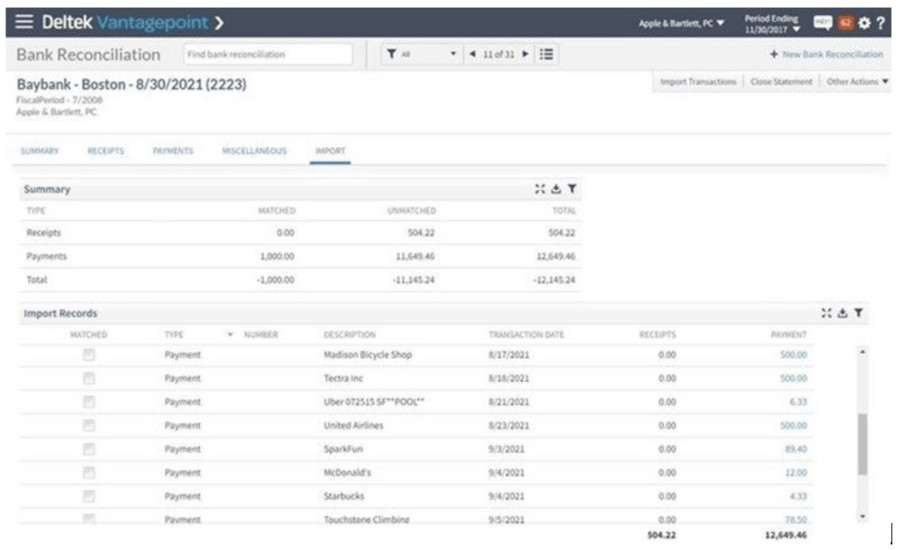
 Instead of the more time-consuming, manually administered import process, a professional services firm’s latest bank transactions are seamlessly imported into the accounting system. After import, they are reflected in the Bank Reconciliation record. It is then taken a step further by automatically matching imported records to posted payments and cash receipts.  

Setup Using the Plaid Assistant 

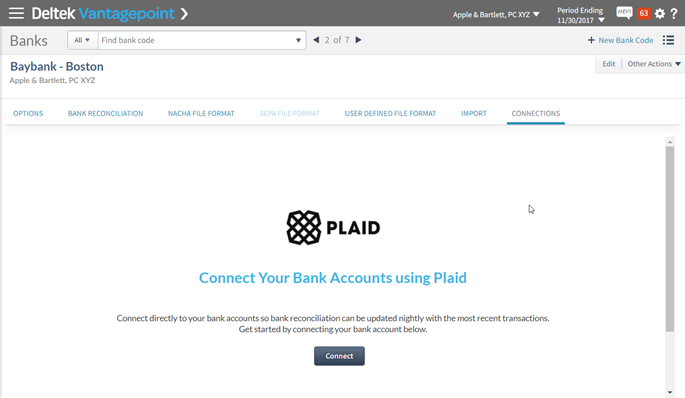
Most Deltek Vantagepoint clients can get started with this convenient solution today. They will first need to connect their supported bank within Vantagepoint settings (Settings > Cash Management > Banks). From there, that process will guide them through selecting their bank, logging in using their existing bank credentials, and then selecting the account that they want to connect to all using the Plaid setup assistant.  

If their banks require multi-factor authentication or OAuth, the process will be similar, while still incorporating those additional security steps to enter needed credentials. For step-by-step instructions, professional services firms can reference this video, or the relevant Deltek Vantagepoint help file 

undefined-Aug-15-2022-10-42-26-88-PM

After the connection is established, transactions which have cleared a professional services firm’s bank will automatically feed into Deltek Vantagepoint Bank Reconciliation on a nightly basis. System administrators can change the date on which Vantagepoint starts the daily transaction import into Bank Reconciliation in addition to the time of day that the import is run. Firms also have the flexibility to manually refresh transactions through the day.  

Bank Automation 01

Need More Help with Bank Feed? 

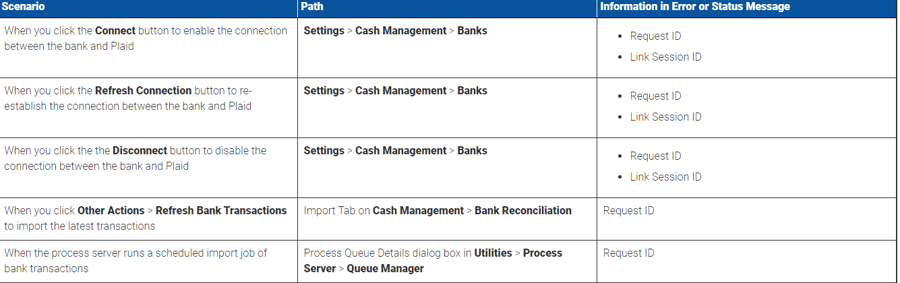
 If there is ever an error related to a firm’s bank connection with Plaid, there are some messages now displayed in Vantagepoint to help with troubleshooting. Firms should note the IDs and let Deltek customer care know. Here are some common scenarios that have been dealt with already. 

Streamlined Bank Reconciliation  

Professional services firms using Deltek Vantagepoint now really have it made in the shade. With the Plaid integration and ensuing automatic bank feeds, bank reconciliation has become even more streamlined. Without the need for manual downloads, firms now have much more time to manage other financial matters, ensuring improved efficiency. Firms should get started with this latest enhancement today! 


Click the image below to learn about how Deltek Vantagepoint powers project-based firms. 


Easily Change Project Plan Dates and Hours with Deltek Vantagepoint

Posted by Rana Blair on May 18, 2022 12:00:00 AM

2022 - Redistribute Planned Hours-01

For professional services firms, projects often don’t go according to the original plan. This forces the project manager to spend time updating the project plan to reflect new project dates, adjusted hours, and resources needed to complete the project. With Deltek Vantagepoint, this doesn’t have to be a burden on the firm’s project managers. These changes are easily and automatically made, allowing the firm to focus on serving clients instead of constantly updating plans.

Typical Project-Based Firm Planning Scenario 

Let’s say the Natural Sciences Building at Northwest project was originally scheduled to take place from January 2021 through September 30, 2021. The phases at the beginning were Master Planning and Project Management. Then the project goes on hold for a few months, which happens often for project-based firms. Now, the project is restarting with a new phase in a new date range. The project manager wishes to set a proper baseline on the original schedule, and then review the new plan against the baseline.  

Let’s walk through each of these steps separately. Then, at the end, learn about how to see this in action.  


Changing Project Plan Dates at Various Project Levels

Changing the plan dates is always the first step. To change the dates at a phase level, click the ‘kabob’ at the far right of the phase and select the Reschedule dialogue. Using this tool, users can shift the entire phase to the left or right or change the duration by dragging it longer or shorter.  

For this example, the new duration for the Sustainability Planning phase will begin on March 1, 2021, and end on July 31, 2021. At this point, Vantagepoint will ask to replace the child dates – those dates of the individual resources beneath the phase. In this case, the answer is yes, replace child dates.  

Screen Shot 2022-05-18 at 10.43.41 PM

Another way to change dates is to go into the Schedule tab. When clicking on the phase to change, put it into edit mode. This will allow the user to simply drag it to the new dates and duration desired. Users can drag the bar right or left and/or hover over to get the bi-directional arrow to expand the duration. Again, the system will ask to replace the child dates or not. 

Screen Shot 2022-05-18 at 10.52.02 PM

Redistributing the Planned Project Hours 

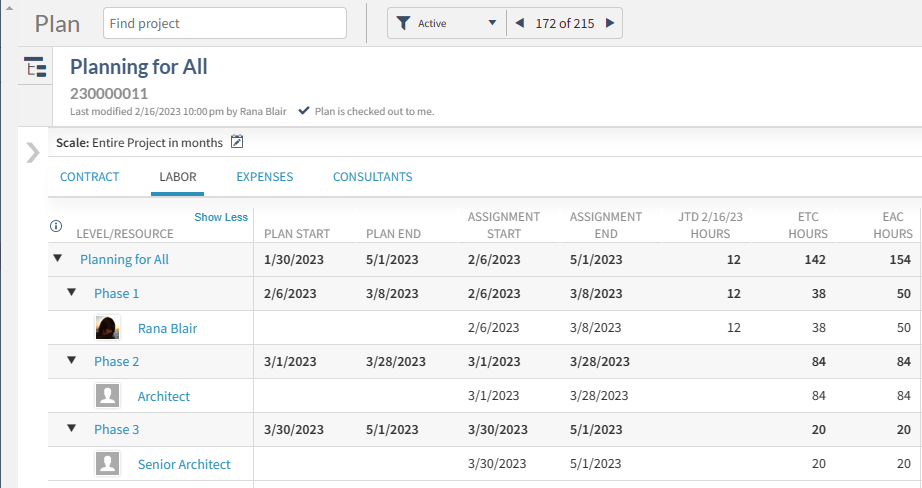
Now that the project dates are correct, it is time to go to the Labor tab to work on the planned hours. Going back to the example, the master planning phase was scheduled to begin on January 28 and end on September 30. Its planned hours are 175, which matches the baseline, so no changes are needed. 

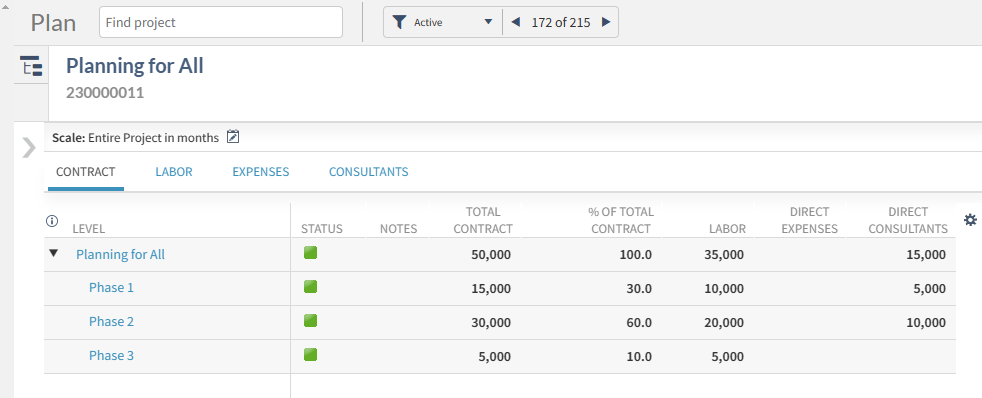
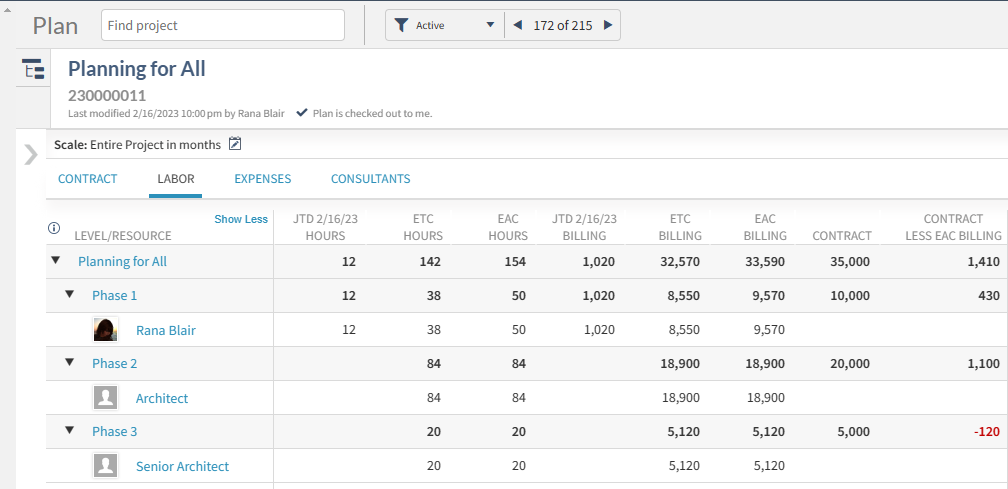
However, on the Sustainability Planning phase, there are some changes needed because there are no baseline hours saved. The planned hours also look low. To look at this further, users can go into their grid settings and turn on different columns such as Contract and Planned Billing. Doing this, the project manager sees 164 hours, the planned value is coming up at $37,980 but the contract value is $65,000. This will be the first place to start changing planned hours. 

Screen Shot 2022-05-18 at 10.44.17 PM

To do this, go to the phase level and select the ‘kabob’ at the end of the row. Select Redistribute Hours and Change Planned hours. For this example, the project will change those 164 hours to 275. Choose to do this for the entire assignment date range and spread hours evenly over the time period. By choosing to redistribute here, the project manager can now see that the planned hours are 275 and the value is calculated at $63,534 which is closer to the contract value.  

Graphical user interface, application

Description automatically generated

Setting a New Project Baseline  

Now let’s plan forward or true-up this project plan. In the screenshot above, the master planning phase has a baseline of 175 hours, with 52 hours exhausted but only 77 hours remaining in the Estimate to Complete (ETC). The Estimate at Completion (EAC) hours is settling around 130 hours, and the project manager knows that the project will use most, if not all, of the 175 budgeted hours. So, the hours in the master planning phase will need to be redistributed using the ‘kabob’ at the end of the phase row. This will help push forward the hours and then allow the project manager to fine-tune them as the project progresses.  

In the redistribute planned hours dialogue box, select the option to replace the planned with actual hours and replace those hours in total. Use the hours from the job to date (JTD) range, choose to spread the differences, and choose to spread both the positive and negative differences in the ETC assignment date range. Then choose to spread the hours evenly.  

Graphical user interface, text, application,

Description automatically generated

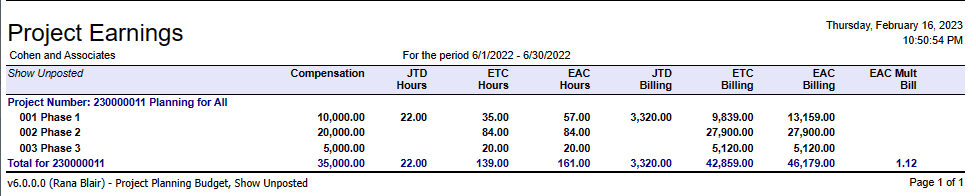
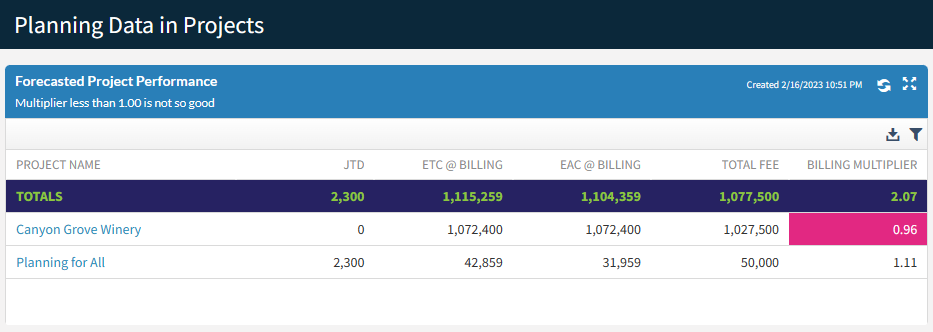
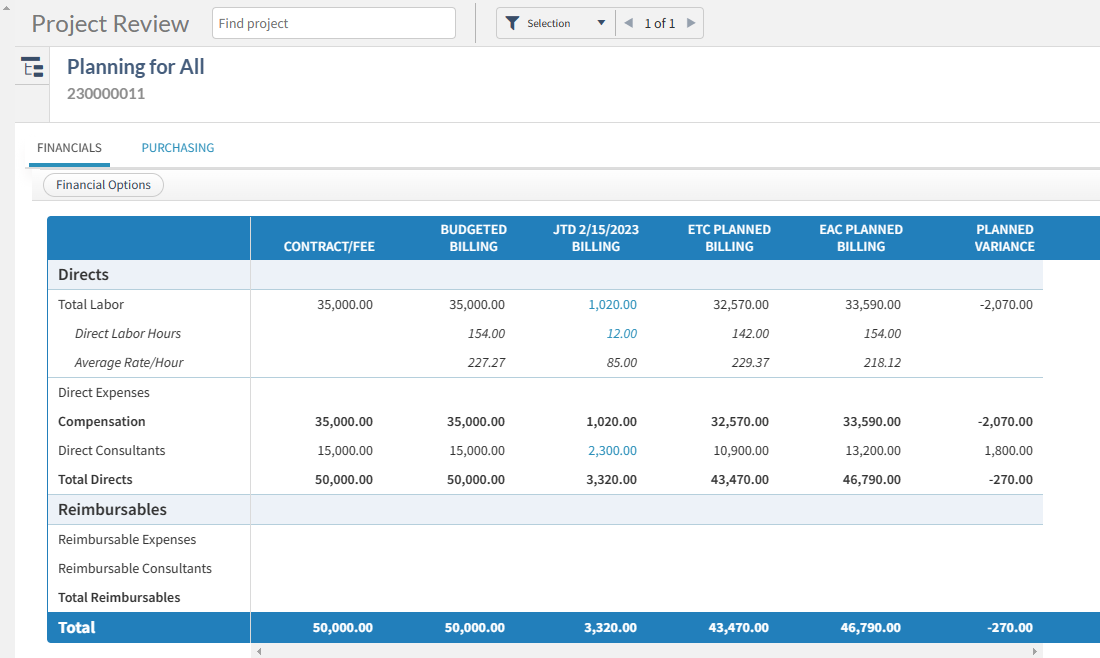
The project manager would do this for each phase that changes the duration or timeframe. Also, with this example, the project manager would make the changes for the sustainability and project management phases. Once those changes are made, the EAC billing is $104,000 and the contract value is $124,000, which looks like the project will perform rather well. The last step is to publish the plan and start working on the project.  

Screen Shot 2022-05-18 at 10.44.37 PM

See Project Plan Changes in Action 

While reading about how easy Deltek Vantagepoint makes it for project managers to adjust their project plans, seeing it in action is even better. Click the image below to watch a 16-minute demonstration to understand how Vantagepoint’s Resource Planning makes it very convenient to plan for unplanned project changes. 

Business Development Calls Made Easy with Deltek Vantagepoint CRM

Posted by Cate Phillips on May 4, 2022 12:00:00 AM

2022 - BD Calls Made Easy with DVP CRM-01

Before the pandemic, I used to volunteer to judge high school debate and often found myself sitting in a public-school library on a Saturday morning staring at those cheesy posters where the words say “Attitude is Everything” …those have not changed by the way. Except 25 years later, those words still ring true. I do not know about you, but if I am rolling into a Zoom business development (BD) call with a bad attitude, it is doomed to fail. Since attitude is important when it comes to developing relationships with clients, how can the new and improved Customer Relationship Management (CRM) power of Deltek Vantagepoint make it easier to keep those business development calls on track? 

Attitude and Deltek Vantagepoint CRM? 

I started writing this on a debate kick, and it therefore must continue… As any good debater will tell you, something should not be fully considered until it has been argued from both the pro and con sides. So, how can business development calls be made easy with Deltek Vantagepoint CRM? Let us compare how it would go from both attitude perspectives. 

Bad Attitude Scenario 

5am – snooze 

5:30am – snooze again, since I went to bed later than normal last night, that is the mental self-justification I will go through this morning. 

6am – wake up, grab phone, check calendar. Okay, good, first meeting is not until 8am, I can sleep more, reset alarm. 

7:15am – grab phone, what? Why? I should have gotten up earlier so I could work out and do my morning stuff. I am grumpy about it.  

7:45am – showered and dressed, sitting down, I must scramble to review a prospect’s info in Vantagepoint. I glance at some fields. I notice that I am about to be talking to the Facilities Director at an airport. My engineering firm has done the type of project they are looking to do but only in Europe. My job is to impress the Facilities Director and get him to introduce us to the architect and then hopefully she will want to bring us in on this massive project.  

8am – meeting starts, I am not as ready as I should be. It goes okay, but it is not a slam dunk. He agrees to let me call him back, but I know in my gut he is not going to be calling the architect immediately to sing our praises. 

8:30am – I guess I should get the notes in the system. I am super discouraged and annoyed at this point, but I try to rally myself to get my activity recorded with enough detail so that I can perhaps salvage this a bit when I do my follow-up. 

Here is the rub folks. The Deltek Vantagepoint CRM is there to help me, and it is a great tool in my toolbox. I did not use it here to my full advantage. 

Good Attitude Scenario 

5am – snooze 

5:30am – I am up! I am not necessarily happy about it, but it happened. I get started on my morning stuff. 

7am – sitting down in my office now, I will not bore you with the details of my morning ritual, but I fed my mind, body and soul before I walked in the door. I am happy I have an entire hour to prepare for my call.  

Here is what I do to prepare using Deltek Vantagepoint CRM: 

Since the project will a subcontractor opportunity to the architect that is always the prime at this airport, she is the contact record I want to peruse. I know I have only got 30 minutes to get this Facilities Director to agree to introduce me to her. From my networking, I know that if he says give this firm a shot, she will consider it. I immediately then go to look at the projects associated with these two contacts. 

Bus_Dev_Calls-01

I also know that she has been a little unhappy with the engineering firm they used from a well-placed cold call by my Business Development Representative (BDR) last year. How do I know this, you ask? I have an excellent memory, and it simply always unfolds perfectly when needed. NOPE. My team and I always track everything inside Deltek Vantagepoint.  

I read my Activity notes from three years ago when I had drinks with someone that reports to the Facilities Director at a conference. She was the one that clued me in to how key the Facilities Director was in terms of getting the architect’s attention. Then I reviewed the notes our BDR had in there from the cold call. Those notes were in an Activity from the call placed and on the Competition tab of my project.  

Bus_Dev_Calls-02

Next, I double checked his and her LinkedIn pages and saw no new connections between us that I did not already know about in advance. My project is at a Lead stage and being the awesome Relationship Manager that I am, I enjoy seeing my projects get into our system, and I lovingly monitor the data associated with them. 

Bus_Dev_Calls-03

I also have a custom field in my Deltek Vantagepoint CRM that gives me something to brag about here. I can query my CRM to find past airport references, and I have 2 or 3 case stories (bragging rights) ready to tell if I get the opportunity in the call. 

8am – The meeting starts, and I am ready to kill it. During the call, the Facilities Director mentions another two of his colleagues that I was not aware of, and their roles could be important should we get this project to the awarded stage. I jot down their info so that our Marketing Associate can fill in the gaps with some research and get them entered in the system.  

8:30am – The call is over. It was the slam dunk I deserved. He was impressed with the stories I was able to tell, and since I was aware of the pain that the current engineering firm is creating with the Architect, this allowed me to effectively differentiate our firm. He said that he would be emailing her right away before he forgot, to ask her to get coffee and discuss what we can bring to the table. We scheduled our next steps. I was able to use the Outlook Connect to immediately get the appointment calendared and tracked in the CRM in one fell swoop. 

Which Attitude Won the Debate?    

Obviously, this debate was destined to go for the Pro - we all knew that, right? The bad attitude not only set me up to perform poorly, but it also affected my ability to leverage my Deltek Vantagepoint CRM correctly. So, here I have proven a good attitude + a great CRM = successful business development efforts. Ready to maintain a positive attitude in your business development efforts by fully embracing Deltek Vantagepoint CRM?  

Stay tuned for future blogs on this topic that cover other parts of the sales cycle and project lifecycle prior to the awarded stage. 


Latest Posts