
Deltek Vision Tips: Workflow for Modified User
It looks like the world will not come to an end! So back at it campers. Let's learn some quick tips about Deltek Vision.
As the first of our Deltek Vision Tips & Tricks Series we would love to hear if you find the information helpful. Recently I came across a question about how to know who modified a record. Of course the audit reports can provide this information, but there are two easier ways to get this information.
In every info center you can hover over the name of the record at the top of the record. It will tell you who created the record and on what date. Additionally, it will tell you who last modified the record and on what date. So in the image below for item #1, the mouse is hovering over the word Paul A. Collier in blue. If you need to know what field was modified then you would need to run an audit report.
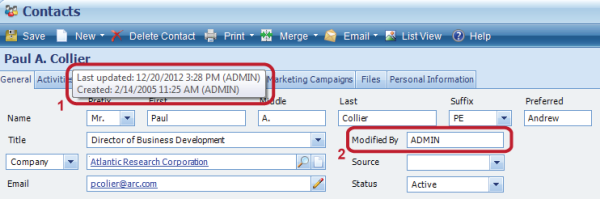
Additionally, you could set-up a field that displays who modified the record. This is accomplished through a workflow. First create a new character field. (Note: An employee field will not work.) In this example it is named Modified By. See image item #2 above.
Then set-up a User Initiated Workflow. Choose the Application, which in this instance will be the Contacts. Click Insert on the Workflows grid. The Workflow Table will be Contact Record and the Workflow Type will be Change. This simply means every time the contact record is changed, the workflow will trigger.

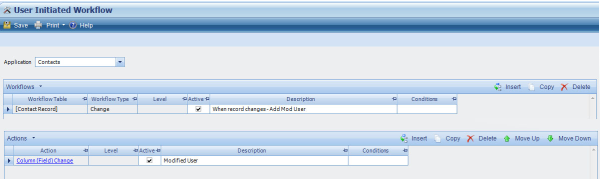
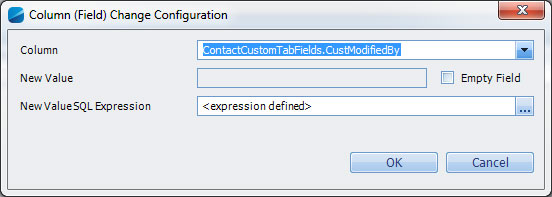
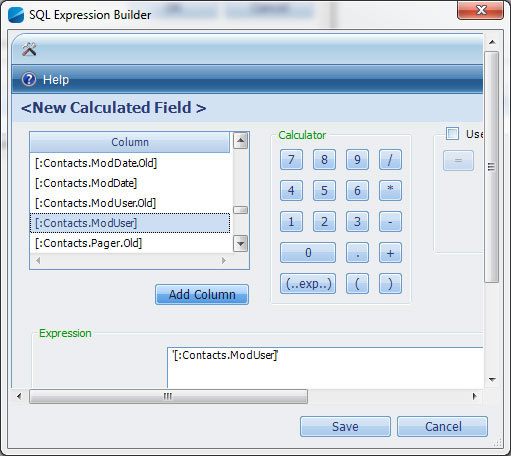
Now on the Actions grid click Insert to add an action. Choose Column (Field) Change for the Actions column. Next, choose the field to update. In this case it is ContactCustomTabFields.CustModifiedBy. Then set-up a SQL Expression. The expression is simply, a field that already exists: [:Contacts.ModUser]. Find that code and click Add Column. Then click Save. Be sure to add descriptions so you know what the workflow is related to and then Save the workflow. To test it, change something on a Contact record. You should see the users login name filter in.
Check back in 2013 for new blog entries related to Deltek Vision tips. Let us know if you learned something new by leaving a comment. Wishing you a wonderful 2013!
 When evaluating if engaging a consultant on a custom programming effort makes sense for your firm, here are some key questions to ask your internal team:
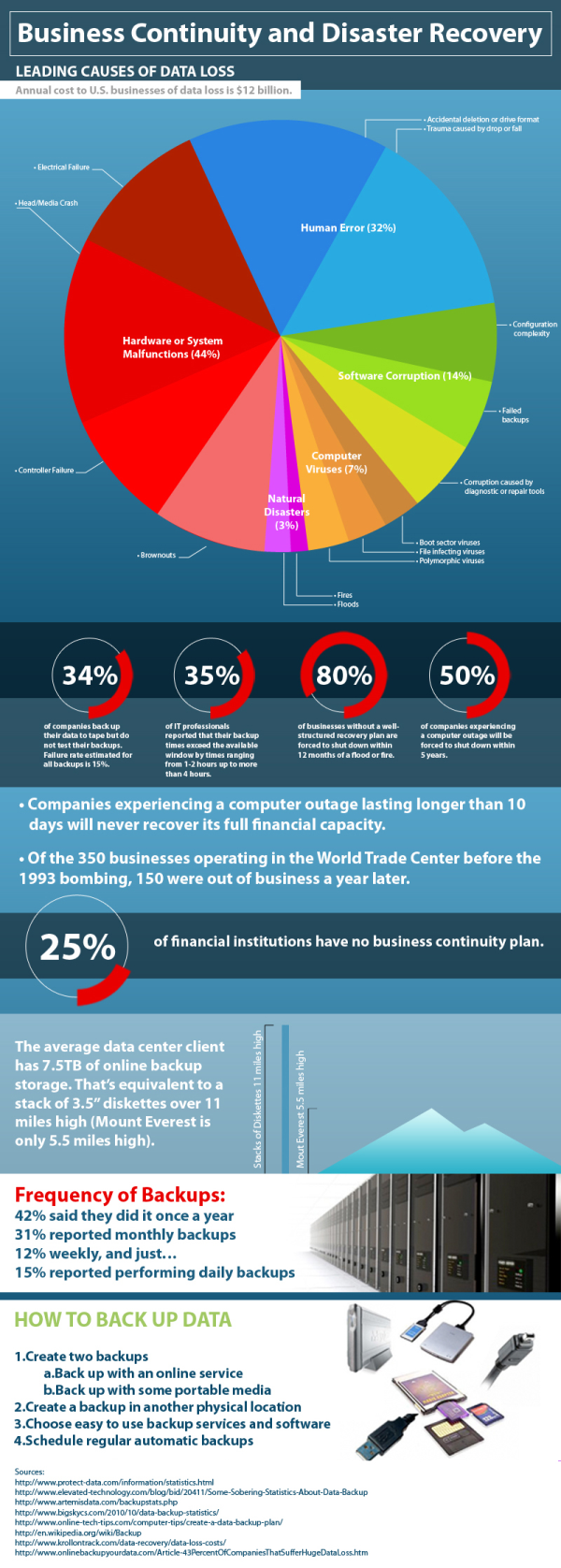
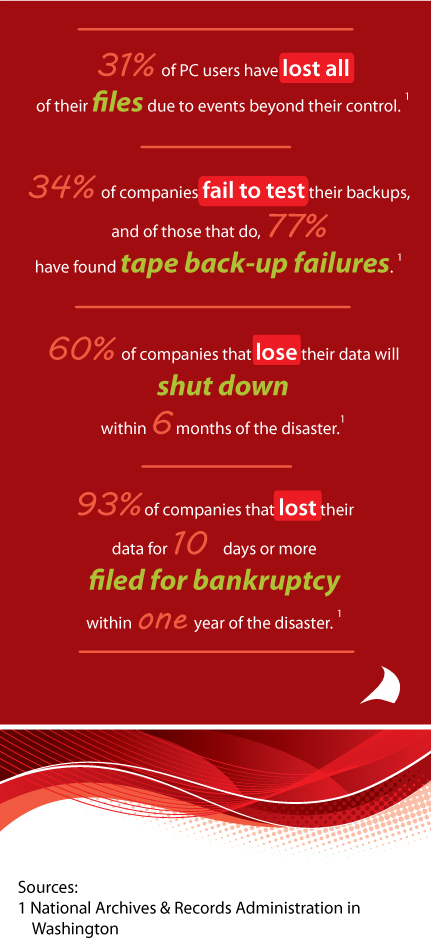
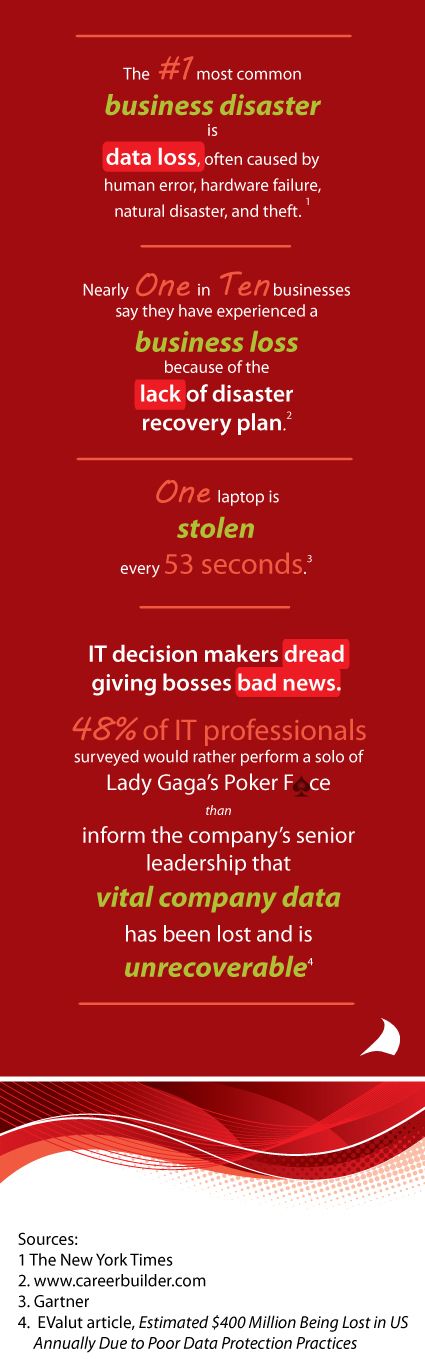
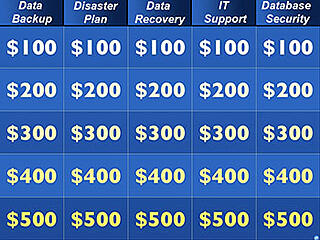 In my day-to-day conversations with companies I am often discussing IT support issues surrounding their firms’ backup plan for their firms’ key financial and marketing data. As I speak to these firms I inquire about steps they are taking to protect this critical data. I often pose this simple question “How long could your firm survive without access to this critical data?” Most firms indicate that they could not afford to be without access to this data for more than a day or two. Yet most have not taken precautions to have a 1-2 day restoration plan/ disaster recovery plan. In many cases these IT support issues seem to be a direct correlation to the firms’ reduction in IT support staff (internal & external) over the last several years. In many of these discussions it is often discovered that there is no backup plan for the firm’s critical data, no testing of backups to verify the integrity of the backups and no off-site backup storage. Two fairly typical conversations have occurred over the last couple months (names omitted to protect the guilty).
 Even though Full Sail Partners utilizes multiple hosting locations and redundancy, we wanted the additional protection of an independent, standalone backup solution for our client’s database archives, logos, and custom work. We felt so strongly about this strategy that we decided to make our solution available to our on-site clients. If there is absolutely nothing else you do to protect your Vision data, a dependable, tested, offsite backup solution is critical. In addition to providing anytime access to your encrypted database backups, we also include 30 days of free hosting and will have your database online and available within 24 hours of your loss of server casualty.